
AI Copilot in 60 seconds
AI Copilot is an optional local fallback. It interprets natural variations of existing SimVoice Copilot commands only when the direct recognizer and deterministic numeric-command parser do not find a reliable configured match.
AI Copilot is not a general chatbot. It does not create new simulator functions and never sends unvalidated actions directly to SimConnect.
The recognition flow is:
- You speak a command in the selected voice-command language.
- The direct recognizer looks for a configured phrase.
- The parameter parser checks whether the phrase contains both a command and a numeric value.
- AI fallback is used only when no reliable direct or parameterized match is available and AI is enabled.
- The result must map to an existing canonical command.
- SimVoice Copilot validates the command, value range and flight-phase rules.
- Only the validated action executes.
Key points:
- The optional local AI package is approximately 2.3 GB.
- Standard and parameterized voice commands work when AI is disabled.
- The model runs locally on the Windows PC.
- Version 1.0.12.0 supports common numeric commands in one sentence, such as “Set heading two seven zero” and “Establecer rumbo dos siete cero”.
- The previous command → Say value / Diga el valor → number interaction remains available as a fallback.
Introduction
SimVoice Copilot is a companion utility for Microsoft Flight Simulator 2020 and Microsoft Flight Simulator 2024. It listens for configured spoken phrases and can perform three main types of action:
- SimConnect voice commands send a configured simulator event.
- SimVar call-outs read a live simulator value and speak a formatted response.
- Voice-to-keyboard commands send a configured keyboard shortcut or scan code.
Commands are organized in editable profiles. The application can restrict commands by flight phase and provide spoken confirmation after execution.
Version 1.0.12.0 supports the application interface and voice commands in English and Spanish. The interface language and recognition language can be selected independently. Common commands that require a number can be spoken in one sentence in either enabled language.
Use SimVoice Copilot as a convenience tool. Verify critical simulator settings visually and test new commands on the ground before using them during a demanding flight phase.
Recommended first-use sequence
- Install and launch SimVoice Copilot from Microsoft Store.
- Allow first-run language detection to select English or Spanish from the Windows display language, or change it later in Settings.
- If Spanish voice commands are selected, allow the required Vosk language model to download.
- Start MSFS 2020 or 2024 and load an aircraft into an active flight.
- Confirm Flight Simulator: Connected on the main screen.
- Open Settings and select the microphone, Copilot voice and audio output.
- Choose Test Voice Recognition and say a command shown in the Commands tab.
- Test AI only after standard commands are working correctly.
Installation and simulator connection
Installation
- Open the SimVoice Copilot product page in Microsoft Store.
- Install the application and allow Windows to complete installation.
- Launch SimVoice Copilot from Start or Microsoft Store.
- Complete any activation or subscription prompts displayed by the app.
Microsoft Store is the official download location for the Windows application.
First-run language detection
When no previous preferences exist, SimVoice Copilot reads the Windows display language:
- Spanish Windows selects a Spanish interface and Spanish voice commands.
- Other currently supported Windows languages select English.
The detected preference is saved. A later manual selection in Settings is preserved.
Spanish recognition model
Spanish recognition uses a local Vosk model. If it is not installed, SimVoice Copilot offers to download and install it automatically.
- The Spanish recognition model is separate from the optional 2.3 GB AI package.
- Standard Spanish commands do not require AI.
- If download is canceled, install the model later by selecting Spanish in Settings.
Windows text-to-speech voice
Spoken confirmations and call-outs use a Windows TTS voice. Spanish responses require a compatible Spanish voice installed in Windows. Recognition and speech synthesis are separate components.
Connecting to Microsoft Flight Simulator
- Launch MSFS 2020 or 2024 on the same Windows PC.
- Load an aircraft and enter an active flight.
- Open SimVoice Copilot and wait for the connection status.
- Send simulator commands only after the status reads Flight Simulator: Connected.
Voice recognition can still be tested while the simulator is disconnected; test mode does not send a simulator action.
Main screen
The main window provides command configuration, live connection and AI status, the available command list, command results and a voice-recognition test.
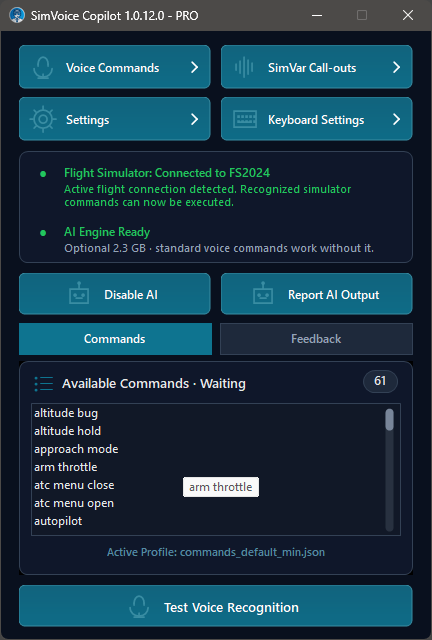
Figure 1. Main screen - Commands tab.
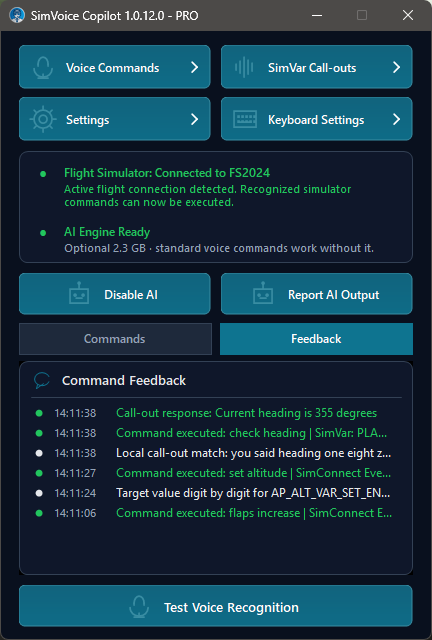
Figure 2. Main screen - Feedback tab.
Main controls
- Voice Commands opens spoken phrase to SimConnect event mapping.
- SimVar Call-outs configures requests that read live simulator values.
- Settings selects languages, audio devices, confirmations, theme and Push-to-Talk.
- Keyboard Settings maps spoken phrases to keyboard shortcuts.
- Connection status reports the active simulator connection.
- AI status reports whether the optional local AI engine is ready.
- Enable AI / Disable AI controls AI fallback without disabling standard commands.
- Report AI Output prepares diagnostic information for support.
- Test Voice Recognition verifies recognition without sending a simulator command.
- Help opens the online manual in the default browser.
Commands tab
The Commands tab shows the current flight phase, the active profile and commands available in that phase. Localized aliases are displayed when available for the selected voice-command language.
Feedback tab
The Feedback tab can show:
- what the recognizer heard;
- direct, local and AI matches;
- speech that could not be applied;
- numeric value prompts, invalid values, cancellation and timeout;
- the SimConnect event or SimVar used;
- final call-out and command results.
Include a screenshot of this tab when reporting a recognition or execution problem.
Voice, audio and Push-to-Talk settings
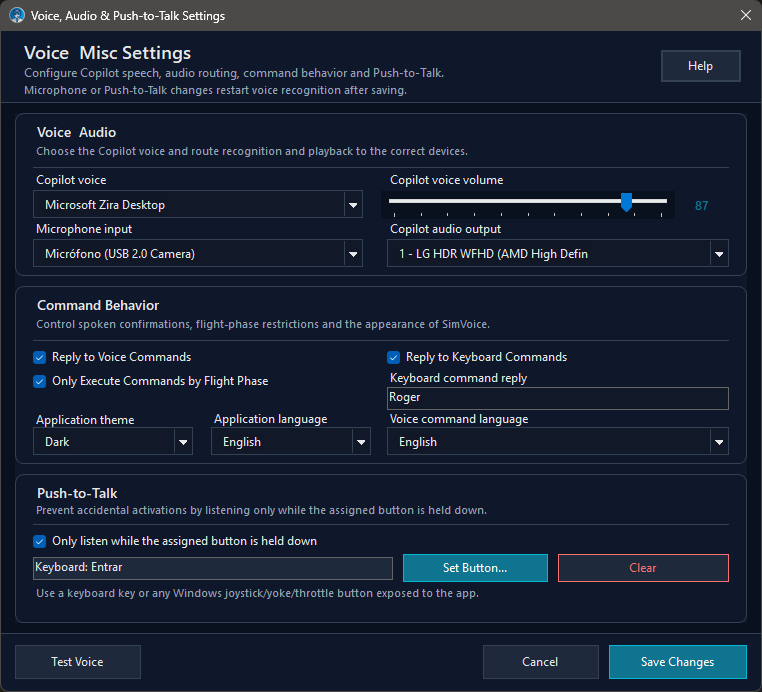
Figure 3. Voice, audio, command behavior, language and Push-to-Talk settings.
Voice and audio
- Copilot voice selects a Windows voice compatible with the voice-command language.
- Copilot voice volume controls spoken confirmations and call-outs.
- Microphone input selects the recognition microphone.
- Copilot audio output selects the playback device.
When Spanish is selected, SimVoice Copilot prioritizes a compatible Spanish Windows voice. If none is installed, Windows language settings can be opened instead of pronouncing Spanish through an English voice.
Command behavior
- Reply to Voice Commands speaks confirmation after a simulator command executes.
- Reply to Keyboard Commands speaks confirmation after a keyboard action executes.
- Only Execute Commands by Flight Phase applies the phase restrictions configured in the active profile.
- Application theme selects the visual appearance.
- Application language selects the interface language.
- Voice command language selects recognition, command aliases, call-outs and keyboard phrases.
- Keyboard command reply defines the spoken keyboard confirmation.
Push-to-Talk
- Enable Only listen while the assigned button is held down.
- Choose Set Button.
- Press the intended keyboard key or controller button.
- Save Changes.
- Hold the assigned control while speaking.
Push-to-Talk is recommended in noisy rooms and when cockpit or speaker audio could trigger recognition.
Testing recognition
- Save the intended microphone and language.
- Select Test Voice Recognition on the main screen.
- Say one command visible in the Commands tab.
- Review the Feedback tab.
The test recognizes a real command but does not send it to the simulator.
Voice command mapping
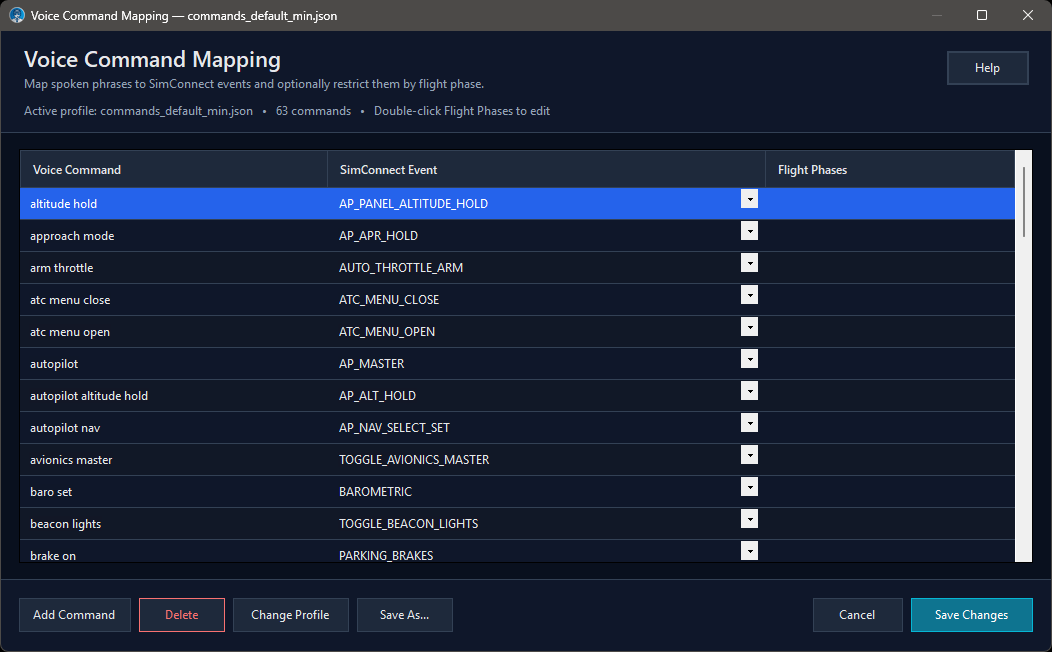
Figure 4. Voice Command Mapping window.
This window links a spoken phrase to a canonical SimConnect event and can optionally limit the command to selected flight phases.
Columns and controls
- Voice Command is the phrase the user says.
- SimConnect Event is the simulator event sent after validation.
- Flight Phases defines where the command is permitted.
- Add Command, Delete, Change Profile, Save As... and Save Changes manage the active profile.
Events shown in green require a numeric value. Version 1.0.12.0 can capture supported commands and values in one sentence. If the value is omitted, the Say value / Diga el valor fallback remains available.
Commands that require a value
| Purpose | English example | Spanish example | |---|---|---| | Heading | Set heading two seven zero | Establecer rumbo dos siete cero | | Altitude | Set altitude twelve thousand | Establecer altitud doce mil | | Airspeed | Set speed two five zero | Establecer velocidad dos cinco cero | | Vertical speed | Set vertical speed minus one thousand | Establecer velocidad vertical menos mil | | COM frequency | Set radio one two five decimal eight | Establecer radio uno dos cinco coma ocho | | NAV frequency | Set NAV one one zero decimal five | Establecer NAV uno uno cero coma cinco | | Transponder | Set transponder seven zero zero zero | Establecer transpondedor siete cero cero cero |
The localized phrase is separated from the canonical event and numeric value. The app validates the range and flight phase before sending the event.
Two-step fallback
- Say the command without a value.
- Wait for Say value or Diga el valor.
- Speak the value.
- The app validates and executes it.
While waiting, say Cancel, Cancelar, Stop, Salir or Escape to exit. Two invalid values or approximately 12 seconds without a valid value also cancel the request.
SimVar call-outs
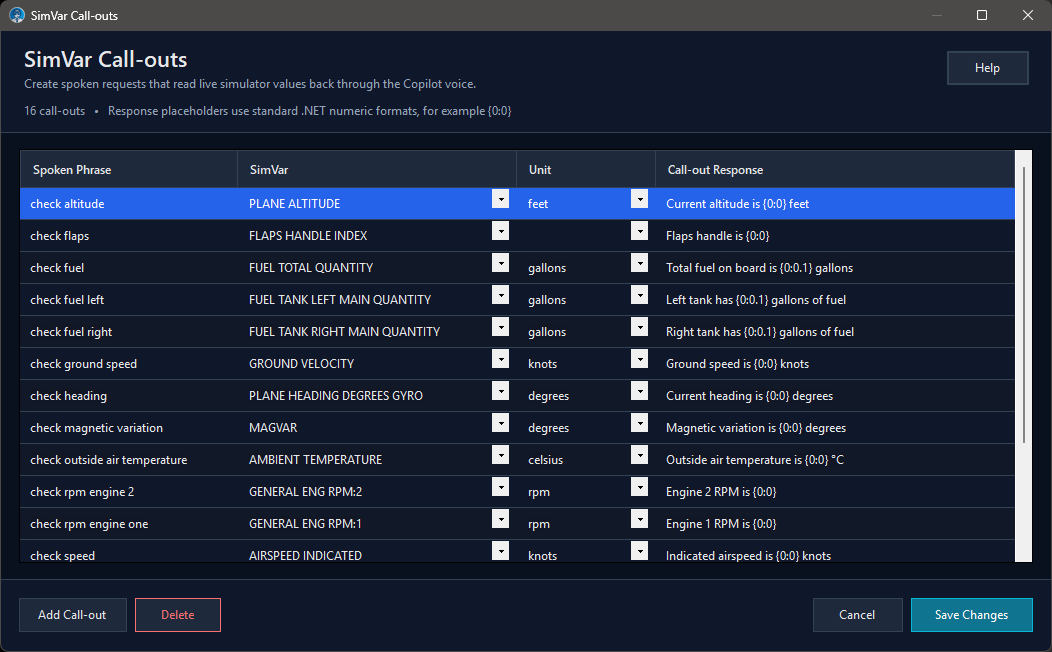
Figure 5. SimVar Call-outs configuration.
SimVar call-outs request a live simulator value and speak a formatted response.
Fields
- Spoken Phrase requests the value.
- SimVar identifies the simulator variable.
- Unit requests the measurement unit.
- Call-out Response defines the spoken template.
Numeric formatting
-
{0:0}displays no decimal places. -
{0:0.0}displays one decimal place. -
{0:0.00}displays two decimal places.
Use zero placeholders for decimals.
{0:0.0}is correct for one decimal place;{0:0.1}is not.
The Feedback tab includes the exact requested SimVar, which is useful when diagnosing aircraft compatibility or configuration issues.
Third-party aircraft may implement variables differently. Verify important values against the cockpit indication.
Voice-to-keyboard mapping
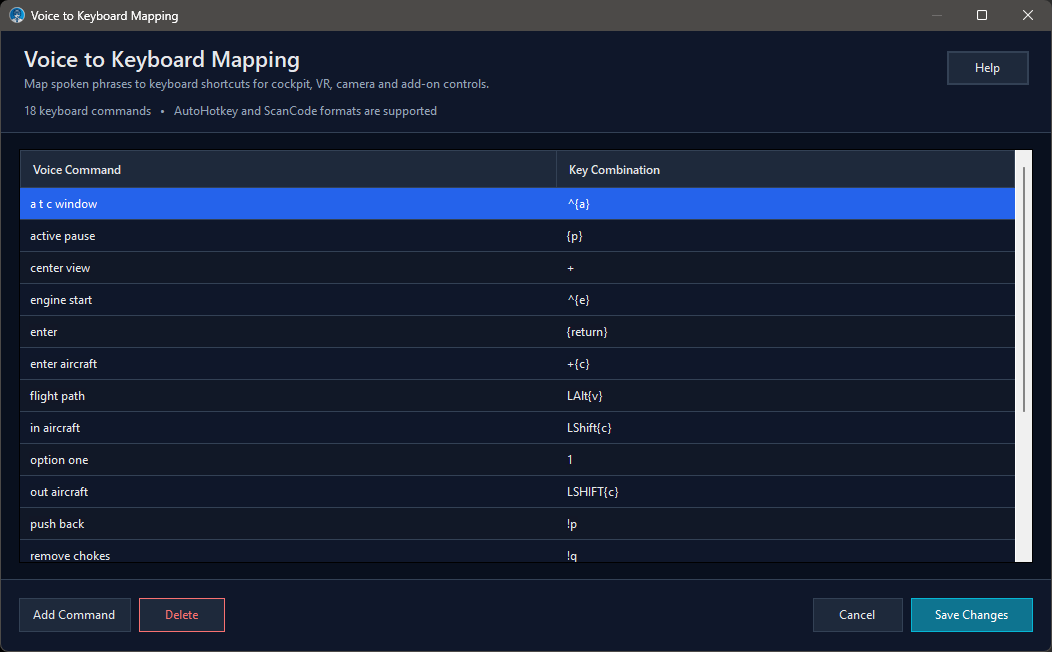
Figure 6. Voice-to-keyboard mapping.
Voice-to-keyboard commands send a keyboard shortcut when the configured phrase is recognized. They are useful for simulator windows, camera controls, VR functions and add-ons that expose keyboard bindings.
Fields and controls
- Voice Command is the spoken phrase.
- Key Combination contains the AutoHotkey-compatible expression or scan-code combination.
- Add Command, Delete, Cancel and Save Changes manage the list.
Testing
- Test the shortcut manually in MSFS.
- Add a distinct spoken phrase.
- Enter the exact key combination.
- Save Changes.
- Keep MSFS focused and test the voice command.
Keyboard commands can be affected by simulator focus, overlays, Windows shortcuts and conflicting add-on bindings.
Flight-phase restrictions
Flight-phase restrictions reduce accidental or inappropriate execution by making commands available only during selected phases.
- Enable Only Execute Commands by Flight Phase in Settings.
- Configure phases in Voice Command Mapping.
- Review the current phase and command list on the main screen.
A recognized command can still be blocked if it is not enabled for the detected phase. Parameterized commands follow the same rule: recognition and value validation can succeed, but the event is not sent when the phase blocks it.
AI Copilot
Purpose
The optional AI engine provides a second interpretation path when the direct recognizer and deterministic parameter parser do not produce a reliable match.
Processing order
- Direct configured phrase matching.
- Deterministic command-and-value parsing.
- Optional local AI fallback.
- Canonical command, value and phase validation.
- Execution only after validation.
AI is useful for natural variations of an existing command. It does not create functions absent from SimVoice Copilot, is not a general aviation chatbot and does not send SimConnect events directly.
The optional local AI package is approximately 2.3 GB. It is not required for normal commands, Spanish recognition or one-sentence numeric commands.
Troubleshooting
Basic checklist
- MSFS 2020 or 2024 is running on the same PC and an active flight is loaded.
- The main screen shows Flight Simulator: Connected.
- The correct microphone and voice-command language are selected.
- The required Vosk model is installed.
- Push-to-Talk is disabled or currently held.
- The command appears in the Commands tab for the current phase.
- The Feedback tab has been checked.
Common symptoms
The app hears nothing
Check the microphone selection, Windows microphone permission, input level and Push-to-Talk assignment. Run Test Voice Recognition.
A phrase is heard but not executed
The Feedback tab reports the heard text and indicates when no matching command was found. Confirm the exact phrase, active profile and current flight phase.
“Bajar flaps” is inconsistent
The English loanword flaps can be transcribed as a similar-sounding word. Version 1.0.12.0 includes common Spanish aliases. Check the heard phrase in Feedback when the problem continues.
The app remains waiting for a value
Say Cancel or Cancelar. The request also cancels after two invalid values or about 12 seconds without a valid response.
Spanish recognition is unavailable
Select Spanish in Settings and accept the automatic Vosk-model download.
Spanish sounds like English
Install a compatible Spanish Windows text-to-speech voice and select it in Settings.
A call-out reports an incorrect value
Verify the SimVar, unit, aircraft and response format. Use {0:0.0} for one decimal place.
AI appears to do nothing
This is expected when deterministic recognition already matches the phrase. AI is a fallback.
Known limitations
- English and Spanish are the enabled application and voice-command languages in version 1.0.12.0.
- One-sentence numeric commands are limited to supported parameter types and language patterns.
- A matching Vosk model and compatible Windows TTS voice are required for the selected language.
- The two-step value prompt remains necessary when a full sentence is not resolved.
- Third-party aircraft can expose events and variables differently from default aircraft.
- Some aircraft systems ignore standard SimConnect events or require aircraft-specific integration.
- Recognition accuracy depends on microphone quality, noise, pronunciation and phrase similarity.
- Keyboard shortcuts depend on application focus and can conflict with other bindings.
Support and problem reports
Include the following information in a support report:
- SimVoice Copilot version.
- MSFS 2020 or 2024.
- Aircraft and add-on developer.
- Application and voice-command languages.
- Exact phrase spoken and the phrase shown as heard.
- Expected and actual result.
- SimConnect event, SimVar and normalized value shown in Feedback.
- AI enabled or disabled.
- Current flight phase and active profile.
- Screenshot of the Feedback tab.
- Repeatable steps.
Official channels
- Website: simvoicecopilot.com
- Online manual: simvoicecopilot.com/help/manual
- Discord: discord.gg/EHQrTVtebV
Quick reference
- Normal command: Say a phrase shown in the Commands tab.
- Command plus number: Say both in one sentence.
- Value fallback: Say the command, wait for the prompt, then say the value.
- Cancel a pending value: Say Cancel, Cancelar, Stop, Salir or Escape.
- Read simulator data: Say a configured SimVar call-out phrase.
- Keyboard shortcut: Use a phrase configured in Keyboard Settings.
- Change language: Select interface and voice-command languages independently in Settings.
- Spanish recognition: Select Spanish and accept the Vosk model download.
- Reduce accidental activation: Enable Push-to-Talk.
- Diagnose: Open Feedback to see the heard phrase, event, SimVar and value.
- Test: Use Test Voice Recognition; no simulator command is sent.
- Help: Help/Ayuda opens this online manual.
Terminology
- SimConnect: Microsoft Flight Simulator interface used for simulator events and data.
- SimConnect Event: Named simulator action sent after validation.
- Parameterized event: Event that requires a numeric value; shown in green in the event list.
- Canonical command: Language-independent internal command identifier.
- Numeric normalizer: Converts spoken English or Spanish numbers into a validated value.
- Vosk model: Local speech-recognition model for the selected language.
- Windows TTS voice: Windows voice used for spoken responses; separate from recognition.
- SimVar: Live simulator variable such as altitude, speed or fuel quantity.
- Call-out: Spoken request that reads a SimVar and returns a spoken response.
- Profile: Saved set of command mappings.
- Flight phase: Operational stage used to filter commands.
- AI fallback: Optional local interpretation after deterministic recognition fails.
- Push-to-Talk: Listening only while an assigned control is held.
Revision history
Manual edition 1.2 - July 2026
Application version: 1.0.12.0 - PRO
- Added bilingual English and Spanish online manuals.
- Added automatic browser-language routing and explicit language switching.
- Updated all application screenshots for version 1.0.12.0.
- Documented automatic first-run language detection and Spanish Vosk download.
- Added one-sentence numeric commands and the two-step fallback behavior.
- Documented cancellation, invalid-value handling and timeout.
- Expanded Feedback guidance for heard phrases, SimConnect events, SimVars and values.
- Corrected the one-decimal format example to
{0:0.0}. - Updated AI, troubleshooting, limitations, terminology and quick reference.
Manual edition 1.1 - July 2026
Application version: 1.0.11.0 - PRO
- Added Markdown source sections and the online manual.
- Added PDF and private editable DOCX generation.