

More voice control, Virtual Scratch Pad and Garmin FMS
SimVoice Copilot 1.1.14.0 combines a major feature upgrade since the last production release and now supports interface and voice commands in English, Spanish and Brazilian Portuguese (PT-BR).
Aircraft voice control: configurable, parameterized commands for compatible aircraft systems, with stronger custom-profile priority and clearer command feedback.
Interactive voice checklists: guided procedures and an MSFS 2024 EFB with checklist selection, progress, Focus and Auto Focus where the aircraft supports them.
Advanced Actions and AI Command Builder: aircraft-specific actions and reviewable multi-step Command Groups using parameters, SimVars and conditions.
Virtual Scratch Pad: voice-driven cockpit notes in both Windows and the MSFS 2024 EFB for ATC clearances, runways, frequencies, QNH and more.
Garmin FMS and flight plans by voice: compatible workflows for origins, destinations, waypoints, Direct-To, runways, SID, STAR, approaches and transitions according to avionics support.
Greater control: redesigned Voice Settings, adjustable speech rate, safer language changes, and improved Push-to-Talk and AI feedback behavior.
Community Packs: share and import portable .svcpack configurations and export the command catalogue to Excel/CSV. Features vary with aircraft and Free/Premium entitlements.
SimVoice Copilot 1.1.14 in 60 seconds
What changed in 1.1.14.0
- Three interface/voice languages: English, Spanish and Brazilian Portuguese.
- Virtual Scratch Pad in Windows and the MSFS 2024 EFB for quick cockpit notes.
- Expanded compatible Garmin FMS flight-plan controls and procedure selection, including aviation identifiers and runway/approach suffixes.
- Redesigned Voice Settings with speech-speed control and managed restart when needed.
- Improved profile command priority, voice feedback and voice/AI fallback behavior; recognition accuracy still depends on language, microphone and local model.
SimVoice Copilot 1.1.14.0 combines permanent Free access with a broader Premium workflow, portable sharing and expanded aircraft-aware automation.
AI features never receive authority to invent simulator targets, guess unsupported aircraft integrations or execute actions while you are still editing.
- Install SimVoice Copilot from Microsoft Store and start with Free. Free is permanent; it is not a trial.
- Connect Microsoft Flight Simulator 2020 or 2024.
- Use normal voice commands, Advanced Actions, keyboard mappings, SimVar call-outs and guided checklists.
- In MSFS 2024, open the SimVoice Copilot EFB for Commands, Checklist and Results.
- Premium unlocks unlimited customization, all supported-aircraft checklist access, flight-phase filtering, Advanced Actions, AI Command Builder, Command Groups, Community Packs and Neural Voice. PMDG 737-800, iFly 737 MAX 8 and FlyByWire A32NX remain certified with Full SimVoice Support for their current MSFS 2024 integrations.
-
Community Packs let you export/share a portable
.svcpackand preview/import a pack received from another user. - The window system menu can Export Commands to Excel/CSV... to generate a consolidated command catalog for documentation, review or sharing.
- Advanced Actions expose real SimVoice catalogue actions, including aircraft-specific integrations when available, and can be executed directly or reused inside groups.
- AI Command Builder turns natural-language intent into a deterministic plan that you review before saving. Nothing executes while you edit.
- Saved workflows can combine Action, parameterized Action, compatible Advanced Action, Keyboard Command, Read SimVar, Call-out, child Group and compatible dynamic values such as
{aviation_identifier}. - On supported Garmin G1000 NXi and Working Title GNS 530 workflows, Direct-To can consume a spoken aviation identifier for airports, waypoints and radio navaids.
- Named checklist voice control can open compatible procedures such as Before Taxi, Before Takeoff, After Takeoff, Approach, Landing, After Landing and Shutdown.
- Managed restart can restore the active checklist and current item one time after a SimVoice-managed restart; a normal manual launch does not restore an old checklist automatically.
- Checklist custom cameras are a universal per-item feature, including same-camera retention and universal camera reset.
- Neural Voice offers 13 selectable voices. Only fresh cloud generation uses generated-minute balance; cached playback uses zero additional balance.
The optional local AI model is approximately 2.3 GB. Standard commands, Advanced Actions execution, Community Pack import/export and guided checklists do not require it.
Introduction
SimVoice Copilot 1.1.14.0 supports English, Spanish and Brazilian Portuguese for its application interface and compatible local voice-recognition workflows.
SimVoice Copilot is a Windows companion for Microsoft Flight Simulator 2020 and 2024.
It supports:
- Voice commands for validated SimConnect or compatible aircraft actions.
- Advanced Actions for direct catalogue execution, including aircraft-specific integrations when available.
- SimVar call-outs for live simulator data.
- Voice-to-keyboard commands for configured shortcuts.
- Guided Voice Checklists with spoken acknowledgements, named checklist selection and compatible automatic completion.
- Command Groups for ordered multi-step workflows.
- Community Packs for portable sharing/import of supported SimVoice configuration.
- Command catalog export to Excel/CSV.
- Reusable aviation identifiers and Direct-To workflows on currently supported Garmin avionics.
Free and Premium
SimVoice Copilot Free is permanent and is not a trial. Free currently provides up to 10 custom voice commands, 5 keyboard commands, 5 SimVar call-outs, one customizable profile, Windows System Voice and the full C172 G1000 Free experience.
Premium removes those customization limits and adds all supported-aircraft checklist access, flight-phase filtering, Advanced Actions, AI Command Builder, Command Groups, Community Packs and Neural Voice.
Premium is available as Monthly or Premium Lifetime. Lifetime means the Premium software entitlement does not expire; cloud Neural Voice generation uses its own generated-minute balance.
Aircraft support and compatibility
SimVoice Copilot maintains broad compatibility with supported Microsoft / Asobo native aircraft. Depending on what the simulator and aircraft expose, a compatible aircraft can provide voice commands, guided checklists, native checklist integration, MSFS 2024 EFB workflows, Focus and Auto.
Current highlighted integrations include:
- C172 G1000 — complete Free aircraft experience.
- Carenado F33A, Carenado B390, Carenado C172 and Flysimware C414AW — validated MSFS 2024 integrations.
- PMDG 737-800 — Full SimVoice Support.
- iFly 737 MAX 8 — Full SimVoice Support.
- FlyByWire A32NX — Full SimVoice Support, including dedicated FCU/autopilot altitude integration and the complete supported SimVoice workflow for MSFS 2024.
- Garmin G1000 NXi and Working Title GNS 530 — current certified Direct-To workflows using reusable aviation identifiers.
The detailed per-aircraft matrix remains available on the Compatibility page: /compatibility.
FlyByWire A32NX — Full SimVoice Support
The FlyByWire A32NX is fully certified for the supported SimVoice Copilot workflow in MSFS 2024. This includes Voice Commands, Advanced Actions where applicable, Guided Voice Checklists, the MSFS 2024 EFB, Focus, Auto Focus and native checklist integration. Current releases also include a dedicated aircraft adapter for Airbus FCU/autopilot altitude control with 100/1000 selector handling, exact target values, readback verification and selector restoration when required.
MSFS 2024 EFB
The in-sim EFB provides Commands, Checklist and Results. On supported checklist integrations, SimVoice Copilot keeps the current checklist item aligned with the simulator. Focus can ask MSFS to focus a compatible cockpit control and Auto can request that focus automatically as the checklist advances.
New capabilities in 1.1.14.0
Version 1.1.14.0 adds:
- Community Packs for portable export/share/import of supported SimVoice content.
- Export Commands to Excel/CSV... from the main window system menu.
- Reusable aviation identifiers for compatible dynamic workflows.
- Garmin Direct-To workflows for the currently supported G1000 NXi and Working Title GNS 530.
- UI responsiveness, import and localization refinements.
The application interface and voice-recognition workflows are available in English, Spanish and Brazilian Portuguese (PT-BR).
Verify critical simulator settings visually and test new commands, Advanced Actions and checklist workflows on the ground before using them during a demanding flight phase.
Installation and simulator connection
Installation
- Open the SimVoice Copilot product page in Microsoft Store.
- Install the application and allow Windows to complete installation.
- Launch SimVoice Copilot from Start or Microsoft Store.
- Complete any activation or subscription prompts displayed by the app.
Microsoft Store is the official download location for the Windows application.
First-run language detection
When no previous preferences exist, SimVoice Copilot reads the Windows display language:
- Spanish Windows selects a Spanish interface and Spanish voice commands.
- Other currently supported Windows languages select English.
The detected preference is saved. A later manual selection in Settings is preserved.
Spanish recognition model
Spanish recognition uses a local Vosk model. If it is not installed, SimVoice Copilot offers to download and install it automatically.
- The Spanish recognition model is separate from the optional 2.3 GB AI package.
- Standard Spanish commands and Spanish checklist acknowledgements do not require AI.
- If download is canceled, install the model later by selecting Spanish in Settings.
Windows text-to-speech voice
Spoken confirmations, call-outs and checklist items use a Windows TTS voice. Spanish responses require a compatible Spanish voice installed in Windows. Recognition and speech synthesis are separate components.
Connecting to Microsoft Flight Simulator
- Launch MSFS 2020 or 2024 on the same Windows PC.
- Load an aircraft and enter an active flight.
- Open SimVoice Copilot and wait for the connection status.
- Send simulator commands or start aircraft checklists only after the status reads Flight Simulator: Connected.
During startup, Results / Feedback reports when voice capture is initializing and when command capture is available. Voice recognition can still be tested while the simulator is disconnected; test mode does not send a simulator action.
MSFS 2024 EFB integration
Current 1.1.14.0 editions include an in-sim SimVoice Copilot EFB experience for MSFS 2024. Open the SimVoice Copilot page from the simulator EFB to use the Commands, Checklist and Results views.
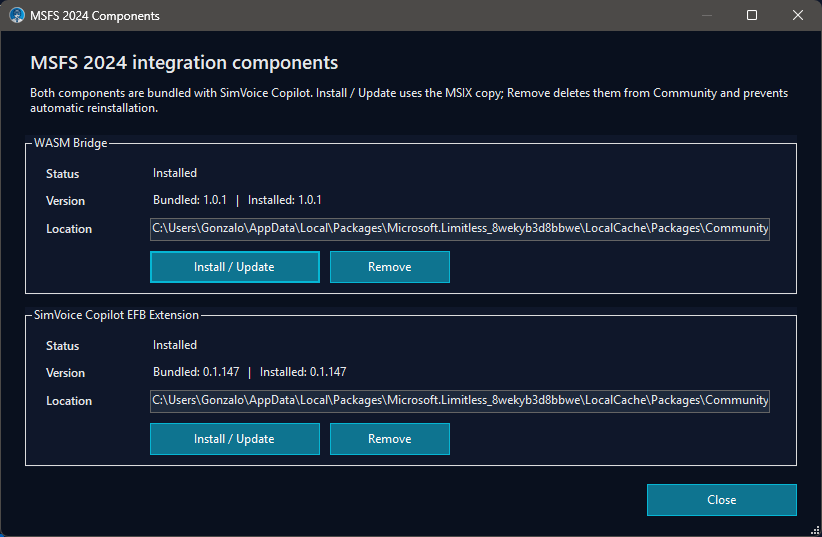
Figure 1. MSFS 2024 integration components: optional WASM bridge management and the installed SimVoice Copilot EFB extension.
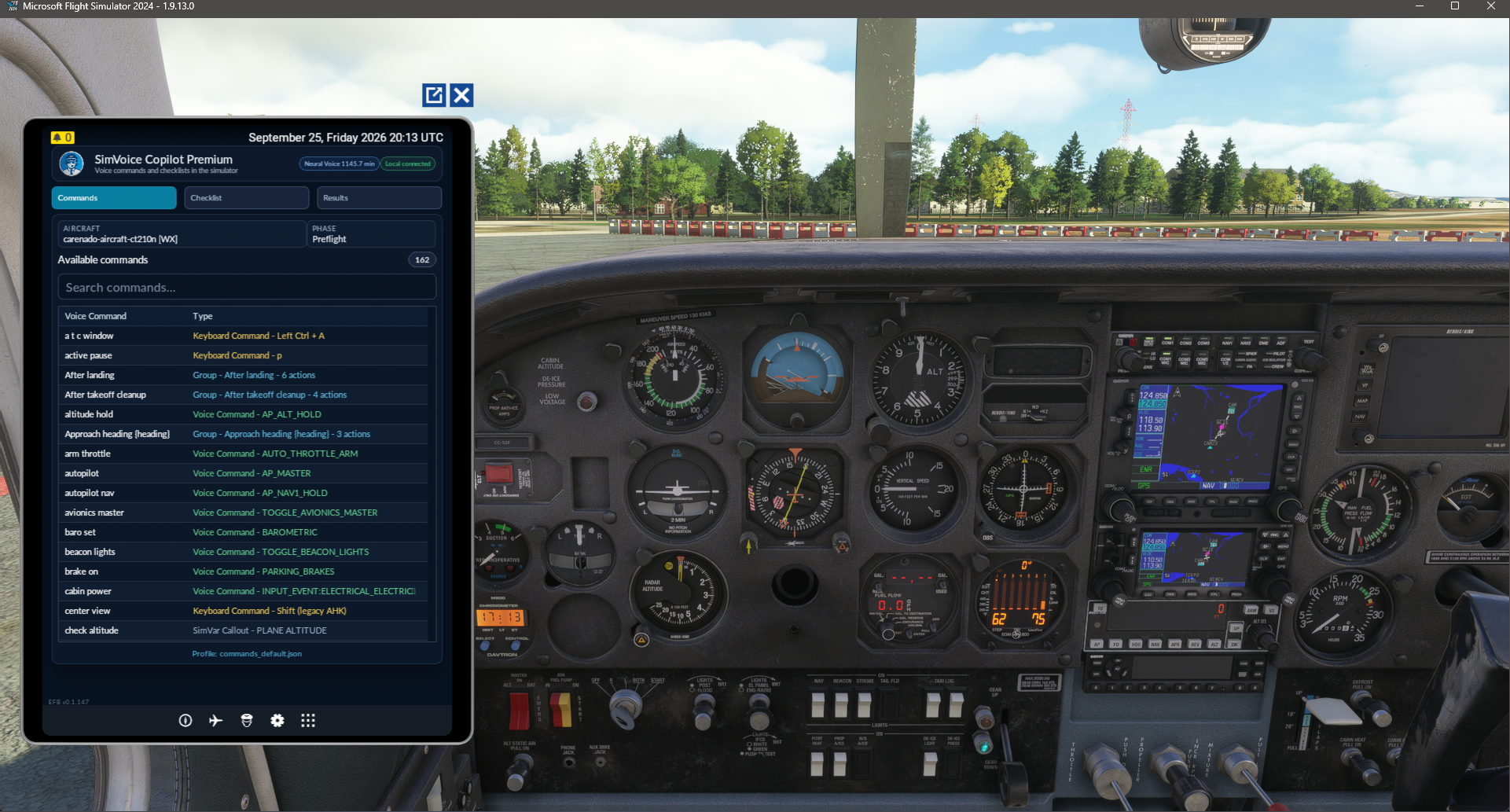
Figure 2. MSFS 2024 EFB - Commands view.
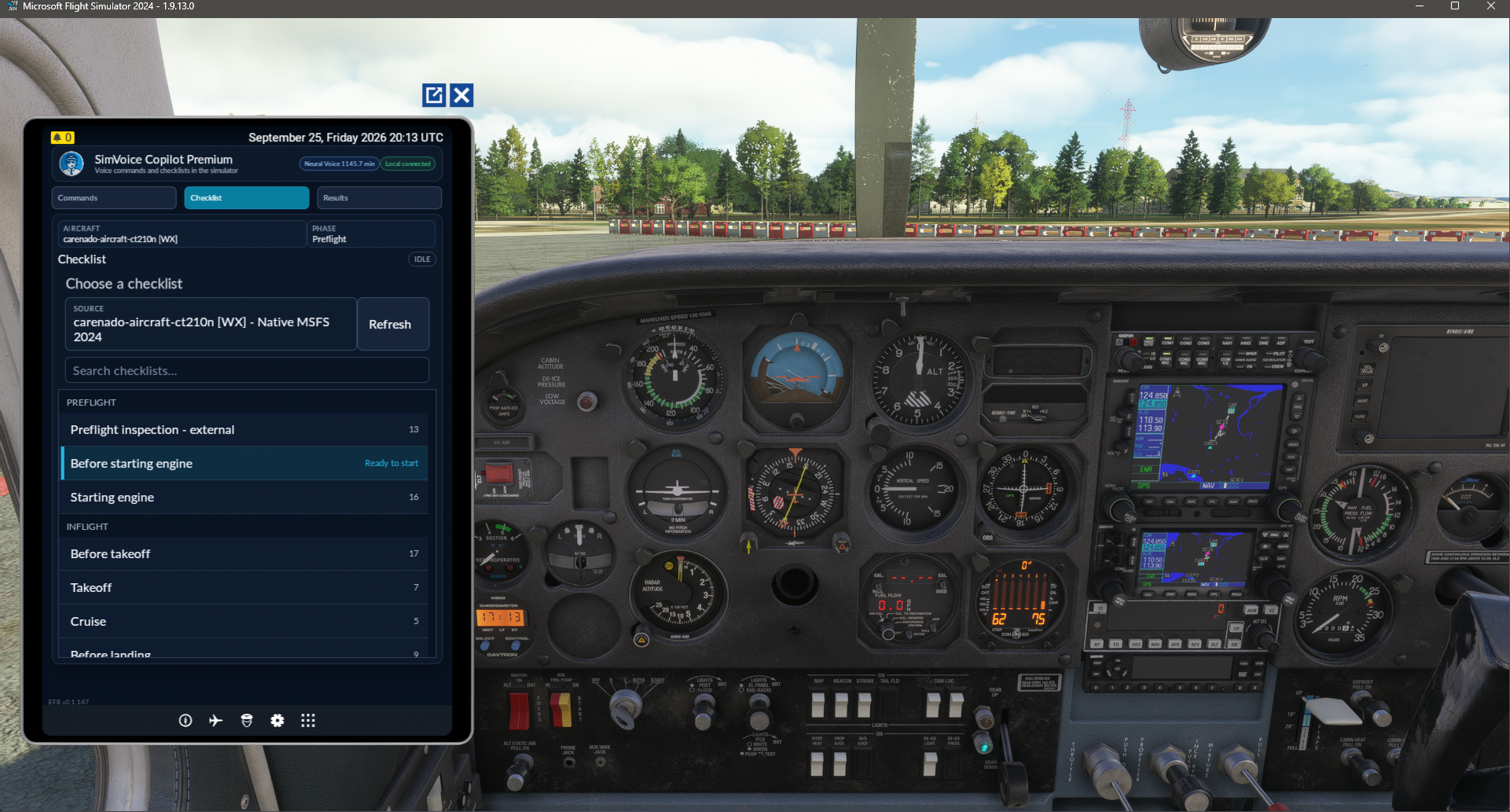
Figure 3. MSFS 2024 EFB - Checklist selection view.
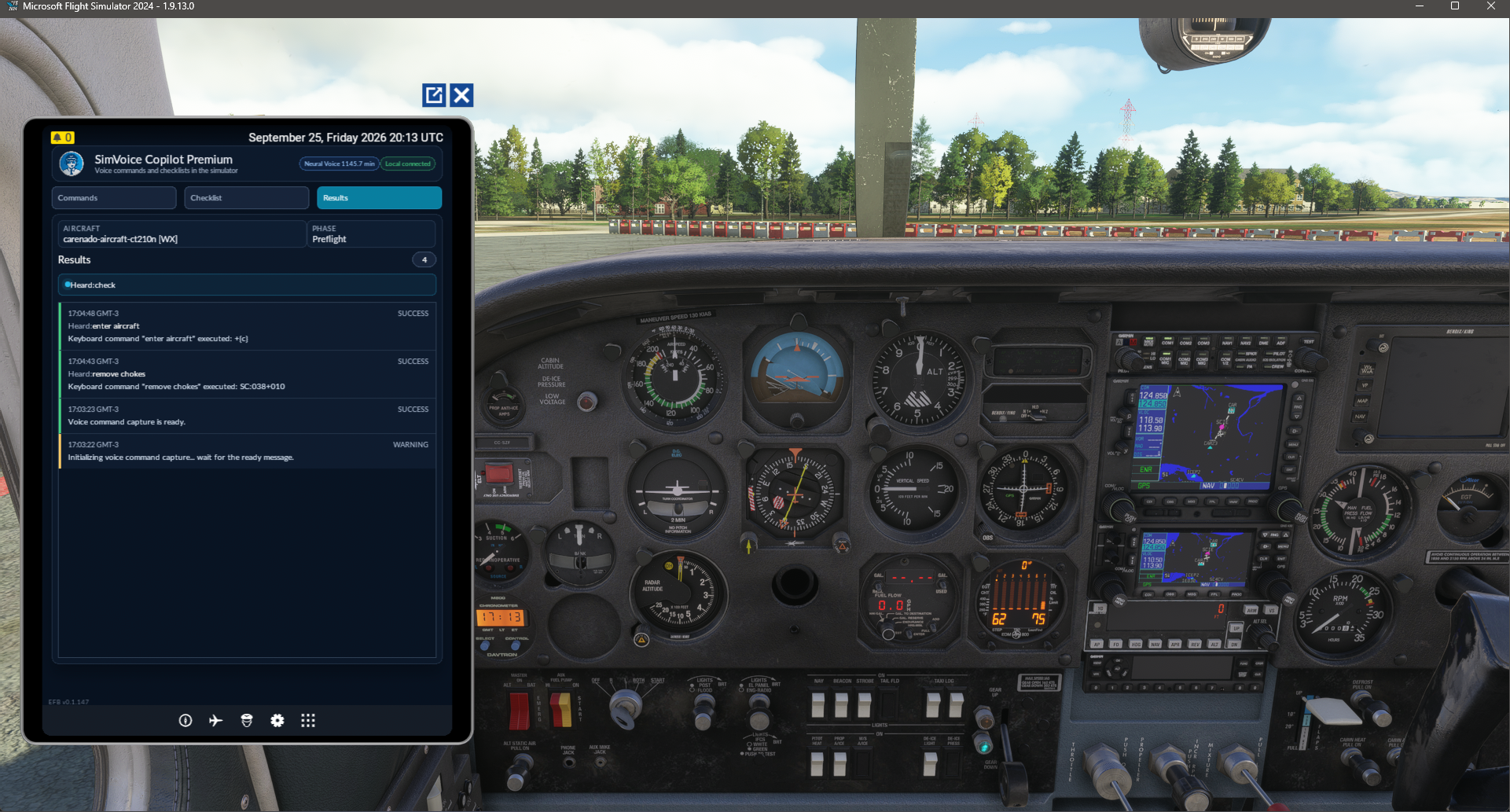
Figure 4. MSFS 2024 EFB - Results view.
The EFB connects to the Windows application through the local SimVoice communication channel. When no local connection exists because the Windows application is closed, the EFB can display Start SimVoice Copilot. Selecting it asks Windows to launch the installed Microsoft Store application through the registered simvoicecopilot:// protocol and the EFB waits briefly for the local connection to become available.
The waiting screen also includes Refresh connection in case the Windows application was started manually or the local link becomes available shortly after opening the EFB page.
If the launch action is unavailable or Windows does not open the app, start SimVoice Copilot manually from Start and return to the EFB. The EFB updates automatically when the local connection is established.
Native MSFS 2024 checklist access
For compatible MSFS 2024 aircraft, the EFB integration reads the native checklist model already resolved by the simulator and publishes it to the Windows application. These sources are identified as Native MSFS 2024 in the checklist catalog.
This native checklist catalog path is separate from the optional local AI package and does not require the WASM bridge merely to read the native checklist pages.
MSFS 2024 WASM bridge
SimVoice Copilot can also deploy the bundled simtech-simvoice-wasm-bridge package for aircraft-specific simulator integrations that require WASM/ModelBehavior access.
When a compatible MSFS 2024 installation is detected, SimVoice Copilot can deploy the following package to the simulator Community folder:
-
manifest.json -
layout.json -
modules\SimVoiceWasmBridge.wasm
Restart MSFS 2024 after the first bridge installation or after a bridge update. Standard voice recognition, normal MSFS 2020 checklist use and native checklist catalog retrieval through the EFB do not require the bridge by themselves.
A visible bridge-management control allows the package to be removed. Close MSFS before removing or repairing the bridge whenever possible.
Microsoft Store updates and the bridge
Microsoft Store replaces the installed application package. On the next SimVoice Copilot launch, the app compares the bundled bridge with the package in the detected MSFS 2024 Community folder and deploys the current version when required.
If the bridge changes, restart MSFS 2024 before testing aircraft-specific bridge functions. The optional AI model, language-model data and local checklist-translation cache are stored outside the read-only MSIX installation directory and should not normally be downloaded again after a Store update.
Closing the simulator
After SimVoice Copilot has confirmed a SimConnect session, closing Microsoft Flight Simulator also closes SimVoice Copilot. The normal Quit notification closes it immediately; if that notification is unavailable during shutdown, a short connection-loss confirmation period is used.
Starting SimVoice Copilot before the simulator does not trigger this behavior. A temporary reconnect during the confirmation period cancels the pending application shutdown.
1.1 Free onboarding and Premium upgrade
New users can continue with permanent SimVoice Copilot Free without a trial. Premium upgrade keeps the same SimVoice account and offers Monthly or Lifetime. No manual license key is required.
Main screen
The main window provides command configuration, live connection and AI status, the available command list, command results, Voice Checklists, Community Packs and a voice-recognition test.
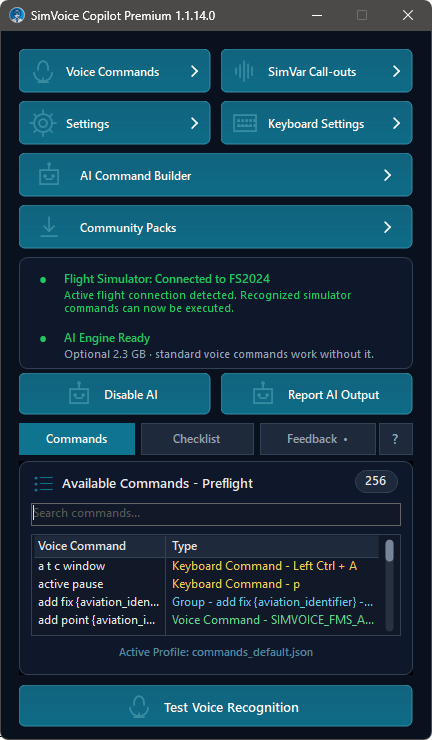
Figure 4. Main screen reference - Commands tab.
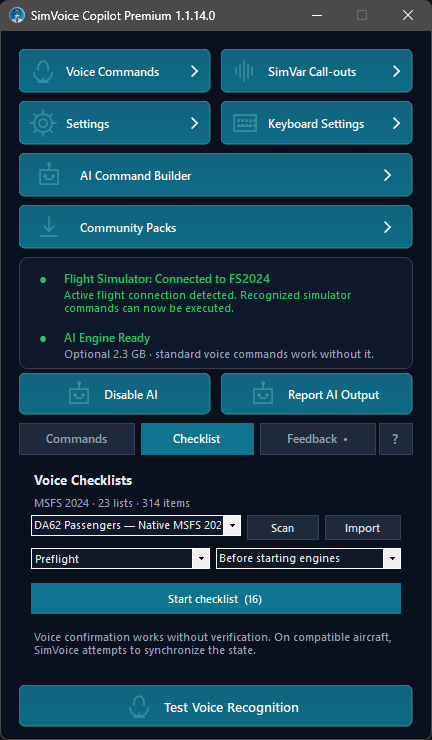
Figure 5. Main screen reference - Checklist selection.
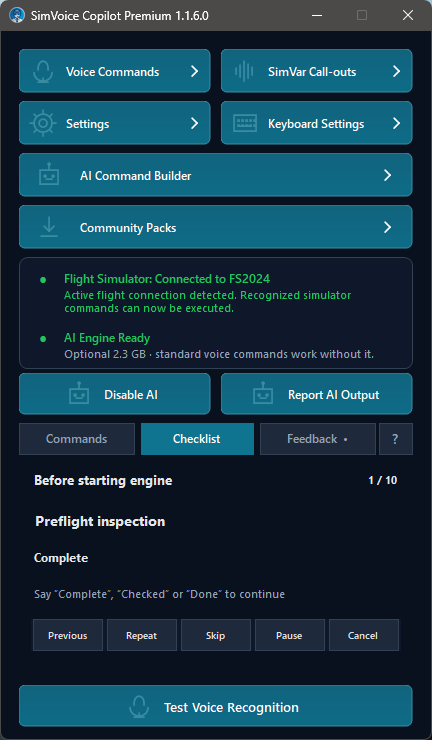
Figure 6. Main screen reference - Active checklist session.
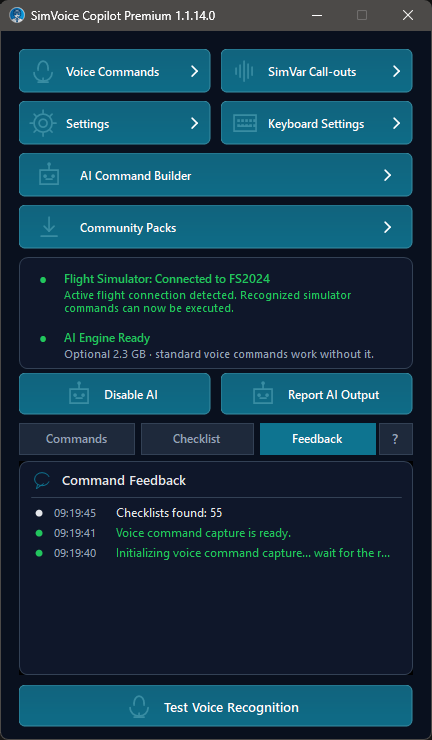
Figure 7. Main screen reference - Feedback / Results tab.
Main controls
- Voice Commands opens spoken phrase to SimConnect event mapping.
- SimVar Call-outs configures requests that read live simulator values and built-in pseudo SimVars.
- Settings selects languages, audio devices, confirmations, theme, Push-to-Talk and checklist acknowledgement behavior.
- Keyboard Settings maps spoken phrases to keyboard shortcuts.
- Community Packs opens portable export/share/import for supported SimVoice content.
- Connection status reports the active simulator connection.
- AI status reports whether the optional local AI engine is ready.
- Enable AI / Disable AI controls AI fallback without disabling standard commands or Voice Checklists.
- Report AI Output prepares diagnostic information for support.
- Test Voice Recognition verifies recognition without sending a simulator command.
- Help opens the online manual in the default browser.
- Export Support Package is available from the window system menu and creates a diagnostic ZIP for support.
- Export Commands to Excel/CSV... is available from the window system menu and exports the consolidated command inventory.
Commands tab
The Commands tab shows the active profile and the commands currently available. The badge in the upper-right reports the number of available phrases.
Commands are shown alphabetically by default. When a localized profile phrase exists, the localized wording uses the event saved in that profile and takes priority over built-in language aliases.
When flight-phase filtering is enabled, only commands permitted for the detected phase are listed.
Checklists area
The Checklists area shows the detected aircraft source, checklist group, current list, current item and progress. The full catalog can include MSFS 2020, MSFS 2024, Native MSFS 2024 and imported sources. The active aircraft is used to choose the most relevant source automatically, but the other catalog entries remain available.
The Search selector matches text contained anywhere in a checklist/source name. Matching is case-insensitive and tolerant of accents/diacritics; multiple search words can match different parts of the name.
Starting a checklist reads the current item and waits for one of the configured acknowledgement phrases. The controls allow the current item to be repeated, the session to be paused or resumed, the next pending checklist to be selected and the active session to be canceled. After Cancel, the selectors become available again without requiring a new Search.
When a supported voice command performs the action represented by the current checklist item, SimVoice Copilot can advance the item automatically and provide spoken confirmation.
When Spanish checklist speech is selected, an English page can be translated through the SimVoice server-assisted translation service. The selected page has priority and additional pages can be prepared in the background.
Community Packs
Community Packs package supported SimVoice content into a portable .svcpack file.
From this window you can:
- export/share a new pack;
- choose the content to include;
- browse and preview a received pack before importing it;
- decide whether compatible shared/selective content should be left untouched or replaced.
Imported profiles are created as new profiles; existing profiles are not overwritten.
Export command catalog
Open the window system menu by clicking the application icon in the title bar, right-clicking the title bar or pressing Alt+Space, then select Export Commands to Excel/CSV....
The export produces a consolidated command catalog in .xlsx or .csv format. It is useful for documentation, review, backup/reference and sharing catalog information.
Feedback / Results tab
The Feedback / Results area can show:
- when voice capture is initializing and when command capture is available;
- what the recognizer heard;
- direct, localized and AI matches;
- speech that could not be applied;
- numeric value prompts, invalid values, cancellation and timeout;
- the SimConnect event, Input Event, SimVar or pseudo SimVar used;
- checklist discovery, native-catalog, translation/cache/prefetch, current-item and acknowledgement information;
- EFB local-connection information;
- Community Pack validation/import status;
- command execution and verification results;
- final call-out and spoken-response results.
Spoken output uses an ordered TTS queue so that command responses and checklist items do not play at the same time. Checklist speech also removes editorial markers such as a trailing plural (s) when they are not intended to be pronounced.
Include a screenshot of this tab when reporting a recognition, checklist or execution problem.
Export Support Package
Use Export Support Package when support asks for diagnostic information or when a problem is difficult to reproduce from a screenshot alone.
The generated ZIP contains recent diagnostic information and a manifest that allows support to correlate recognition, simulator, checklist, translation, Community Pack and EFB events around the reported time. See Section 13 for the recommended support workflow.
Unified command inventory in 1.1
Commands distinguish Voice Command, Keyboard Command, Group and SimVar Callout. Premium Command Groups also appear in the MSFS 2024 EFB inventory when connected.
Voice, audio and Push-to-Talk settings
Languages and speech response speed in 1.1.14.0
The redesigned Voice Settings screen provides a more navigable layout, scrolling and adjustable speech response speed. Application Language and Voice Recognition Language support English, Spanish and Brazilian Portuguese (PT-BR). Changing settings that require rebuilding the recognizer uses a controlled application restart; saved profiles are not meant to be reset by a language change.
Spoken recognition is model-dependent: words unavailable in the local Vosk vocabulary may require a different command phrase. Review Feedback and do not use ambiguous acoustic aliases for aircraft controls.
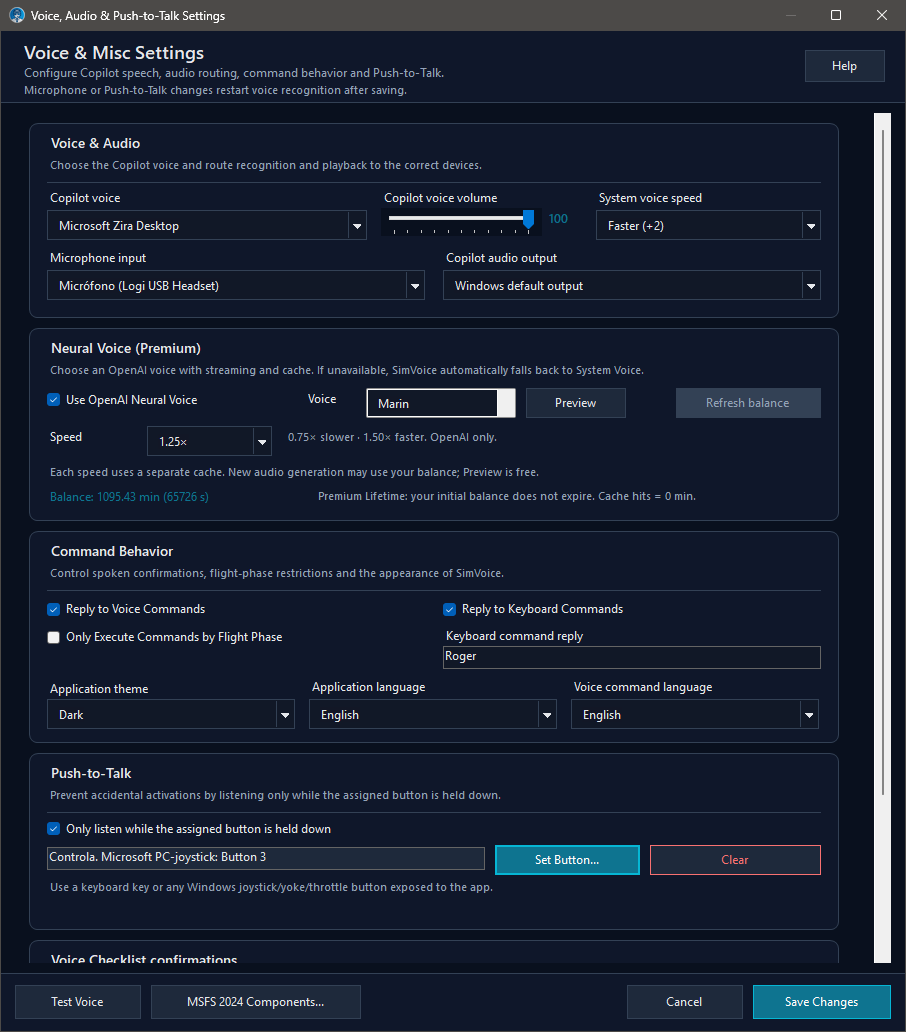
Figure 8. Voice, audio, behavior, language and Push-to-Talk settings.
Voice and Audio Settings help
The in-app help for this screen describes the following controls:
- Application Language changes the interface text.
- Voice Recognition Language selects the model that listens for commands. Each language keeps its own active profile.
- Input Device must be the microphone you are actually using.
- Output Device and Voice control spoken responses and checklist readings.
- Push-to-Talk prevents simulator audio from being interpreted as commands. Hold the button while speaking and release it when finished.
- Respond to voice/keyboard commands enables or disables spoken confirmations.
- Filter commands by flight phase applies the restrictions configured in the profile.
- Checklist acknowledgement responses define the words that advance a spoken checklist.
When the recognition language changes, SimVoice restarts the recognizer and loads that language's independent profile and checklist response set.
Voice and audio
- Copilot Voice selects a Windows voice compatible with the language.
- Copilot Voice Volume controls confirmations, call-outs and checklist readings.
- Microphone Input selects the recognition device.
- Copilot Audio Output selects the playback device.
When Spanish is selected, SimVoice Copilot prioritizes a compatible Spanish voice. If none is installed, it offers to open Windows language settings rather than speaking Spanish with an English voice.
One ordered TTS playback queue prevents command responses, status messages and checklist items from playing over each other. Pausing, stopping or canceling a checklist also stops pending checklist speech.
Checklist acknowledgement responses
Use short, distinct words that are easy to recognize. Typical defaults are:
- English: checked, done, roger.
- Spanish: hecho, entendido.
Multiple phrases can be configured. The active voice-recognition language determines which set is used. Speak after the checklist item has finished playing.
Push-to-Talk
- Enable Listen only while the assigned button is held.
- Select Assign button.
- Press the desired keyboard or controller button.
- Save the changes.
- Hold the control while speaking and release it when finished.
Push-to-Talk is recommended when ambient noise or cockpit audio could trigger recognition. Complex numeric phrases can receive a second sequential local recognition pass after the button is released; this does not upload or permanently store microphone audio.
Compatible dynamic workflows can also capture spoken aviation identifiers while Push-to-Talk is held. These identifiers are not limited to numeric commands.
When using a checklist with Push-to-Talk, hold the assigned control only while saying the acknowledgement and release it after the phrase.
Recognition test
- Save the desired microphone and language.
- Select Test Voice Recognition on the main screen.
- Say a command shown on the Commands tab or one of the checklist acknowledgement phrases.
- Review the Feedback tab.
The test recognizes speech but does not send a simulator command or advance a live checklist.
Neural Voice — Premium
Premium can use System Voice or Neural Voice. The 13 voices are alloy, ash, ballad, coral, echo, fable, onyx, nova, sage, shimmer, verse, marin and cedar; marin is the default. Only fresh generation consumes balance. Cache playback uses 0 additional minutes. Monthly includes 120 generated minutes per billing cycle; Lifetime includes 1,200 initial generated minutes with no balance expiration. System Voice is the fallback.
Voice command mapping
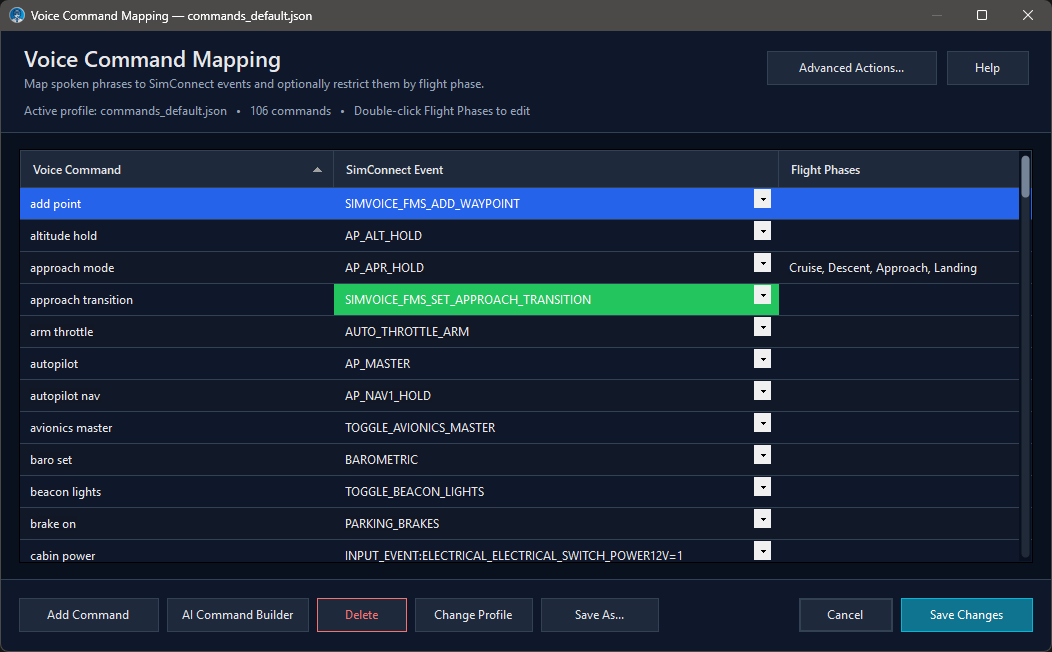
Figure 9. Voice Command Mapping with the Advanced Actions entry point.
This window maps a spoken phrase to a canonical SimConnect Event or compatible aircraft Input Event and can restrict it by flight phase.
Voice Command Mapping help
- Voice Command: the exact phrase SimVoice should recognize.
- SimConnect Event: the event that will be sent to MSFS.
- Flight Phases: optionally restricts the command to selected phases. Leave it empty to allow every phase.
- Advanced Actions...: opens the dedicated editor for catalogue actions that go beyond a simple standard event mapping.
The event selector is searchable. Type part of an event name to reduce the list instead of scrolling through the entire catalog. Built-in catalog data is available immediately; online catalog refresh runs in the background and does not block the window.
Highlighted events require a value and can be used in two ways:
- One phrase: “set altitude three thousand three hundred”.
- Two steps: say the command, wait for Say value, then say the number.
Use distinct phrases that are easy to pronounce. Avoid creating two commands that sound almost identical. Double-click Flight Phases to edit them. Saving restarts the recognizer so the changes are loaded.
Advanced Actions
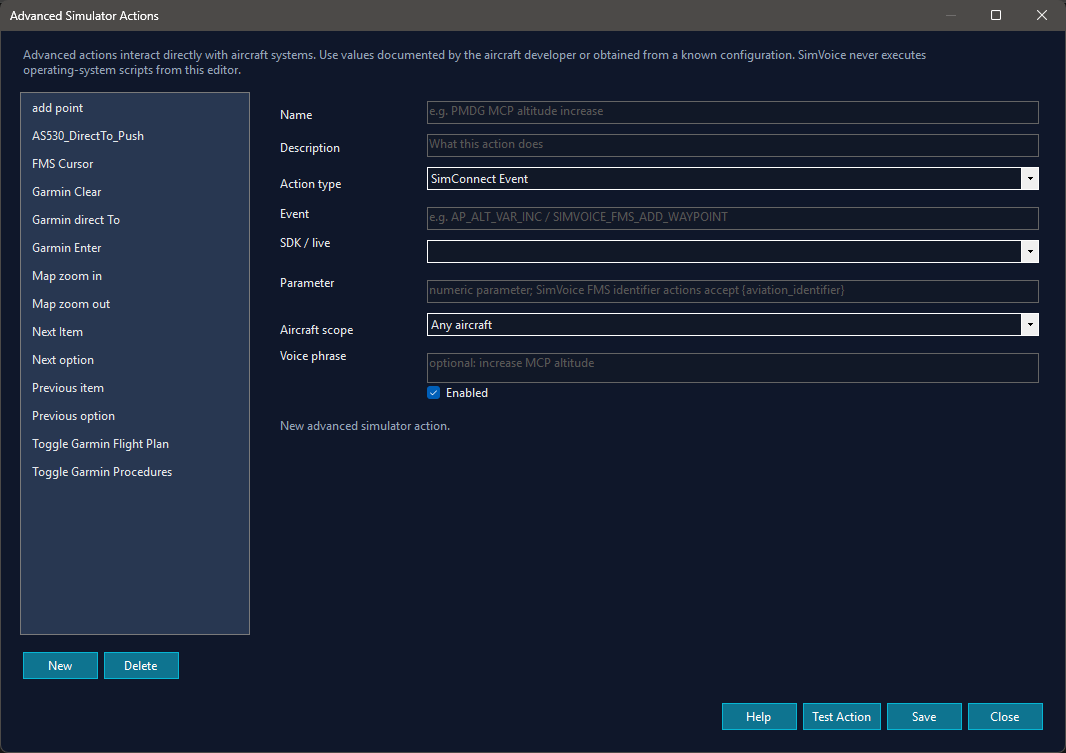
Figure 10. Advanced Actions editor.
Advanced Actions are not just keyboard shortcuts. They are higher-level SimVoice catalogue actions, including aircraft-specific actions when a compatible integration exists.
In version 1.1.14.0, Advanced Actions can:
- be filtered by the active aircraft;
- be executed directly with Test Action;
- be reused inside AI Command Builder;
- become part of a saved Command Group;
- expose aircraft-specific integrations without requiring you to create a separate normal Voice Command first;
- include compatible dynamic-value workflows such as Direct-To that consume
{aviation_identifier}.
Typical examples include actions such as Set MCP Altitude. On aircraft families such as PMDG 737-800 or iFly 737 MAX 8, a compatible Advanced Action can accept a value, send it through the aircraft-specific integration path and verify the actual readback before the workflow confirms success.
Not every aircraft exposes the same Advanced Actions. Availability depends on the active aircraft and the integrations currently supported by SimVoice Copilot.
Relationship to higher-level voice workflows
- Advanced Action → direct execution
- Advanced Action → AI Command Builder → Command Group → high-level voice phrase
This means you can test an action directly first, then reuse the same capability inside a larger deterministic workflow.
Current profile behavior
- Commands are presented alphabetically by default.
- Exact duplicates are removed automatically when the profile is normalized.
- A customized localized phrase keeps the event selected by the user and takes priority over a built-in alias.
- Saving the profile updates the effective recognition map used after restart.
Profile controls
Add Command, Delete, Change Profile, Save As... and Save Changes manage the active profile.
Highlighted events require a numeric value. Current version can capture the command and value in one phrase. If the value is missing or cannot be resolved safely, the Say value / Diga el valor fallback remains available.
Examples of commands that require a value
| Purpose | English example | Spanish example | |---|---|---| | Heading | Set heading two one zero | Establecer rumbo dos uno cero | | Heading 360 | Set heading three six zero | Establecer rumbo tres seis cero | | Altitude | Set altitude three thousand three hundred | Establecer altitud tres mil trescientos | | Speed | Set speed two five zero | Establecer velocidad dos cinco cero | | Vertical speed | Set vertical speed minus six hundred | Establecer velocidad vertical menos seiscientos | | COM frequency | Set radio one two five decimal eight | Establecer radio uno dos cinco coma ocho | | NAV frequency | Set NAV one one zero decimal five | Establecer NAV uno uno cero coma cinco | | Transponder | Set transponder seven zero zero zero | Establecer transpondedor siete cero cero cero |
The localized phrase is separated from the canonical event and its value. The application validates range and flight phase before sending the event.
Two-step fallback
- Say the command without a value.
- Wait for Say value or Diga el valor.
- Speak the value.
- The application validates and executes it.
While waiting, say Cancel, Cancelar, Stop, Salir or Escape. Two invalid values or the configured timeout without a valid response cancel the request.
Interaction with Voice Checklists
When the current checklist item represents an action that is also executed through a supported SimVoice command or a compatible Advanced Action route, successful execution can complete or advance that item automatically. The Feedback tab records the command route and checklist progression.
This behavior depends on the command and aircraft integration. When no compatible state or action mapping is available, say the configured checklist acknowledgement after completing the item manually.
Aircraft and third-party add-on compatibility
SimVoice Copilot is designed to use standard Microsoft Flight Simulator events, SimVars and interfaces whenever possible. However, some aircraft —especially complex third-party add-ons or aircraft with custom avionics and systems— implement certain controls through proprietary events, Input Events, ModelBehaviors, BVars or other aircraft-specific interfaces that differ from the simulator's standard controls.
As a result, not every command or Advanced Action may work initially with every aircraft, even when the same workflow works correctly with other models. This does not necessarily mean that the aircraft cannot be supported: in many cases SimVoice Copilot can add aircraft-specific support once we can identify how that control is implemented.
One example is the Flysimware C414AW, which requires aircraft-specific handling for certain functions because of its custom implementation. Similar cases may exist in other current or future aircraft.
If you find a command or Advanced Action that works with other aircraft but not with yours, you can help us add or improve compatibility. Do not uninstall or modify aircraft files in an attempt to fix the issue. Reproduce the problem, immediately generate a Support Package from SimVoice Copilot, and send it to us together with the exact aircraft and version, whether you are using MSFS 2020 or MSFS 2024, the command you spoke, what you expected to happen, and what actually happened. If possible, also tell us whether the same control works manually from the cockpit.
This information allows us to determine which aircraft interface is being used and, when technically possible, add the required support in a future SimVoice Copilot update.
Save and restart behavior in 1.1.14.0
Grammar-changing saves trigger a full SVC restart. This includes Voice Commands, Save As, Keyboard Commands, SimVar Call-outs and AI Command Builder saves.
SVC will restart now to apply the changes.
Free supports up to 10 custom voice commands; Premium removes that limit.
Aircraft control by voice
Aircraft voice control is the core SimVoice Copilot experience. It converts recognized phrases into configured, compatible simulator actions while keeping the active aircraft and selected command profile in context.
Voice Command Mapping: inspect the spoken phrase, simulator action and assigned flight-phase restrictions.
What you can control
Depending on the active aircraft and its exposed simulator interfaces, you can operate compatible autopilot modes, selected heading, selected altitude, vertical speed, speed, Mach, COM/NAV frequencies, lights, landing gear, flaps and other aircraft systems. Not every aircraft responds to the same SimConnect event.
Commands with spoken parameters accept numeric values when the selected command profile and aircraft integration support them. For example, set heading one eight zero requests a heading of 180 degrees; set altitude two thousand five hundred requests a selected altitude of 2,500 feet. A successful voice match alone does not guarantee the aircraft applied a change: check the simulator indication and any available Results/readback.
Commands, profiles and priority
- In Voice Command Mapping, inspect the command name, target simulator action and flight-phase filter.
- Select a voice profile suited to the aircraft and language. The active user's explicit command should take precedence over a competing factory/AI candidate.
- To add a custom phrase, choose an action supported by the simulator; avoid ambiguous phrases that could activate unrelated systems.
- Use Results / Feedback to distinguish recognition, dispatched event and confirmed simulator state when available.
Main window: available commands under the active voice profile.
Advanced aircraft systems
Advanced Actions provide aircraft-aware actions and parameters when supported by the current integration. Use the Advanced Actions catalogue rather than guessing raw events.
Advanced Actions catalogue filtered to the active aircraft.
Reliable speaking practices
- Choose the matching Voice Recognition Language; UI language can be independent.
- For long numbers or ICAO identifiers, hold Push-to-Talk through the full phrase, or wait for continuous recognition to complete.
- Change aircraft or profile before testing an action configured for another avionics family.
- Never rely exclusively on speech confirmation for flight-critical simulator state; visually inspect the avionics.
SimVar call-outs
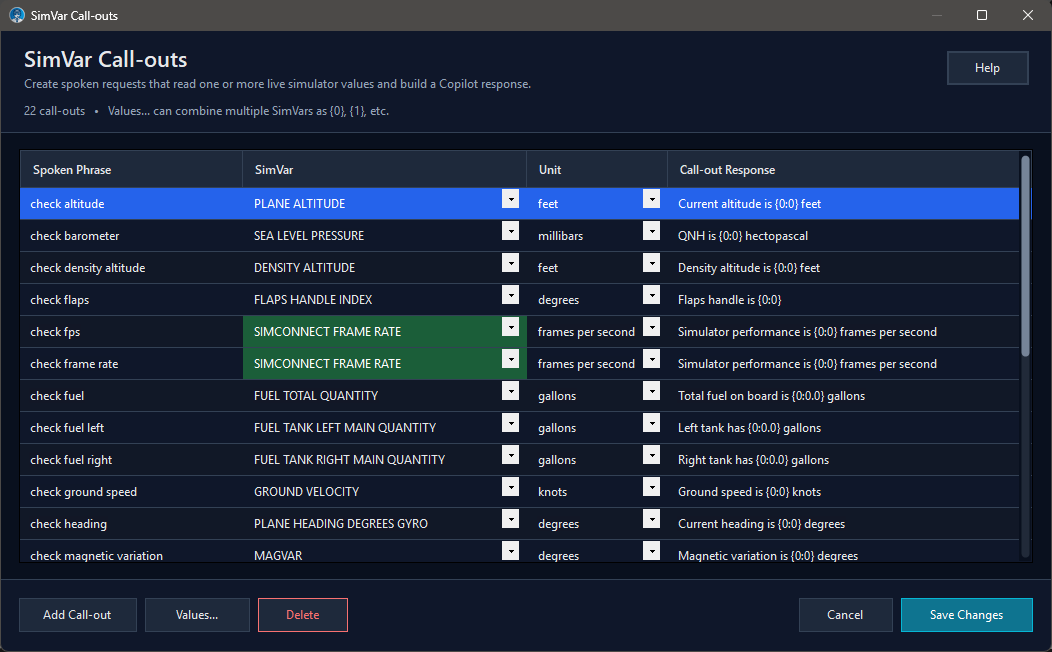
Figure 6. Version 1.1.14.0 SimVar Call-outs configuration.
SimVar call-outs request live simulator values and speak formatted responses. The selector includes normal SimVars and built-in SimVoice pseudo SimVars.
SimVar Call-outs help
- Spoken Phrase: phrase used to request the reading.
- SimVar: exact SimConnect variable name or a supported pseudo SimVar.
- Unit: unit requested from SimConnect.
- Call-out Response: spoken text containing the required value placeholders.
The SimVar selector is searchable. Type part of the variable name to reduce the catalog. Built-in and cached data load immediately; the official catalog refresh runs in the background so opening this window does not wait for Internet access.
Normal SimVar example:
check altitude
PLANE ALTITUDE
feet
Current altitude is {0:0} feet
The {0} format controls decimals. SimVar names and units must be valid for SimConnect.
Built-in pseudo SimVars
Pseudo SimVars are highlighted in green and include an explanatory tooltip.
SIMCONNECT FRAME RATE
This value comes from the SimConnect Frame system event rather than from a normal SimVar.
Default phrases include:
check fps
check frame rate
The response uses one placeholder:
Simulator performance is {0:0} frames per second
SIMCONNECT WIND
This pseudo SimVar requests ambient wind direction and ambient wind velocity together.
Default phrase:
check wind
The response must include both placeholders:
-
{0}= wind direction in degrees. -
{1}= wind speed in knots.
Example:
Wind is from {0:0} degrees at {1:0} knots
Direction zero is spoken as 360. Saving is blocked when a SIMCONNECT WIND response omits either required placeholder.
Numeric formatting
-
{0:0}shows no decimals. -
{0:0.0}shows one decimal. -
{0:0.00}shows two decimals.
Use zeros for decimal positions.
{0:0.0}is correct for one decimal;{0:0.1}is not.
The Feedback tab includes the exact requested SimVar or pseudo SimVar, which is useful when diagnosing configuration or aircraft compatibility.
Third-party aircraft may implement variables differently. Verify important values against the cockpit indication.
Read SimVar inside AI Command Builder
Premium can silently read a numeric SimVar into a variable such as PLANE ALTITUDE → {alt} and use it later in a condition such as {alt} <= 10000. Free supports up to 5 spoken SimVar call-outs; Premium removes that limit.
Voice-to-keyboard mapping
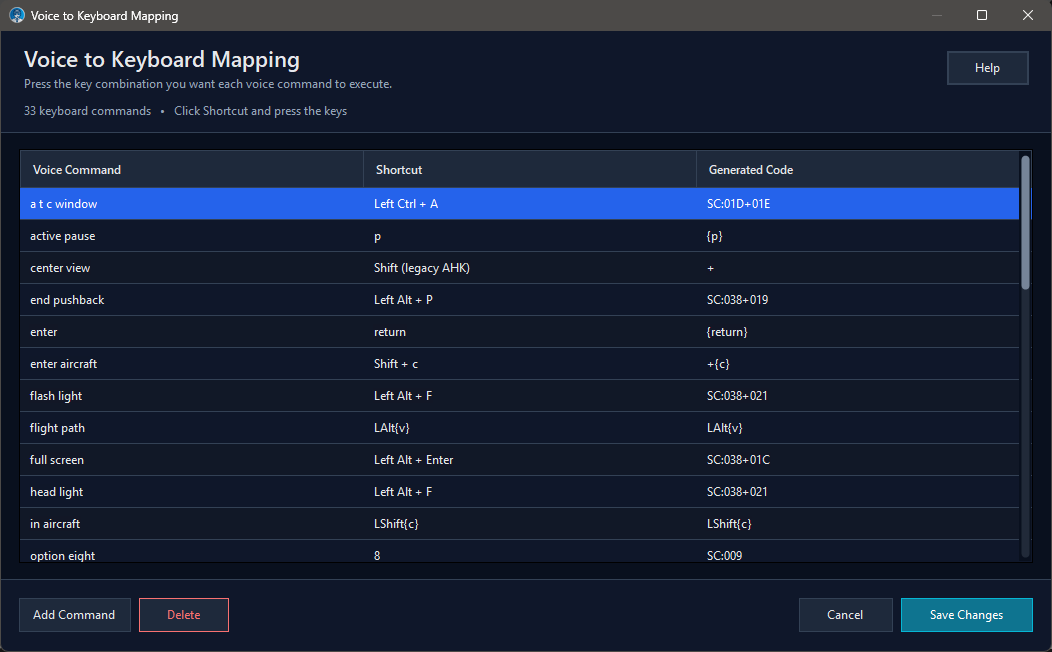
Figure 10. Voice-to-Keyboard Mapping with direct shortcut capture and generated code preview.
Voice-to-keyboard commands send a keyboard shortcut when the phrase is recognized. They are useful for simulator windows, camera controls, VR and add-ons with keyboard assignments.
Voice-to-Keyboard Mapping help
Current 1.1.14.0 editions continue to use the simpler direct-entry workflow:
- Select Add Command or an existing row.
- Edit the Voice Command phrase.
- Click the Shortcut cell.
- Press the desired key combination directly on the physical keyboard.
- Review the automatically generated code in Generated Code.
- Select Save Changes.
In normal use, you do not need to type AutoHotkey syntax manually. SimVoice captures the shortcut and builds the compatible generated code for you.
Columns and controls
- Voice Command is the spoken phrase.
- Shortcut shows the user-friendly combination captured from the keyboard.
- Generated Code shows the AutoHotkey/ScanCode expression that SimVoice will execute.
- Add Command, Delete, Cancel and Save Changes manage the list.
- Help opens the syntax reference window.
Understanding generated code
Although manual typing is not the primary workflow anymore, SimVoice remains compatible with generated expressions based on AutoHotkey v2 concepts and scan codes.
Simple keys
g  -> G key
1  -> 1 key
Modifier examples
^{e}      = Ctrl+E
+{a}      = Shift+A
!{q}      = Alt+Q
^{Tab}    = Ctrl+Tab
Special keys
{return} {esc} {backspace} {up}
ScanCode examples
SC:006
SC:038+021
Legacy or imported rows can still show older AHK-oriented forms such as Shift (legacy AHK) or left/right modifier variants such as LAlt{v} and LShift{c}. Those values remain valid.
Recommended test
- Test the shortcut manually in MSFS.
- Add a distinct, easy-to-pronounce phrase.
- Click Shortcut and press the exact combination you want SimVoice to send.
- Confirm the Generated Code looks correct.
- Save the changes.
- Keep MSFS focused and test the phrase.
Shortcuts may be affected by application focus, overlays, Windows shortcuts and conflicting add-on assignments.
1.1 integration with Command Groups
AI Command Builder Premium can reuse an existing Keyboard Command as a step without changing the underlying shortcut. Free supports up to 5 keyboard commands; Premium removes that limit.
Flight-phase restrictions
Flight-phase restrictions reduce accidental or inappropriate execution by making commands available only during selected phases.
- Enable Only Execute Commands by Flight Phase in Settings.
- Configure phases in Voice Command Mapping.
- Review the current phase and command list on the main screen.
A recognized command can still be blocked if it is not enabled for the detected phase. Parameterized commands follow the same rule: recognition and value validation can succeed, but the event is not sent when the phase blocks it.
Voice Checklists are selected independently from command phase filtering. However, a voice command intended to complete the current checklist item can still be blocked by the active flight-phase rule. In that case, perform the action manually and use the configured checklist acknowledgement.
Flight-phase filtering is a Premium capability in 1.1. AI Command Builder groups can also be restricted to phases. Leaving all phases unchecked makes the group available in every phase.
Voice Checklists
Voice Checklists let SimVoice Copilot read compatible procedures item by item while you keep attention on the cockpit. The normal workflow remains acknowledgement-based: perform or verify the action, then say the configured response to continue.
The optional local AI package is not required for Voice Checklists or for Spanish checklist translation.
Checklist sources in version 1.1.14.0
The checklist catalog can contain several source types at the same time:
- supported MSFS 2020 package checklists;
- supported MSFS 2024 package checklists;
- Native MSFS 2024 checklists obtained through the in-sim EFB integration;
- user-imported checklists.
For compatible MSFS 2024 aircraft, the EFB reads the checklist model already resolved by the simulator and sends the resulting groups, pages and actionable items to the Windows application. Native sources are labeled with Native MSFS 2024 so they can be distinguished from package-based or imported sources.
Native MSFS 2024 availability depends on what the loaded aircraft exposes through the simulator checklist system. Different aircraft can expose different numbers of groups, pages and items.
Discovering and selecting aircraft checklists
- Load the aircraft completely inside an active flight.
- Wait until the main window reports Flight Simulator: Connected.
- Allow automatic aircraft detection to finish.
- In MSFS 2024, open the SimVoice Copilot EFB page when native checklists are required.
- Review the automatically selected source, group and checklist.
- Change the selected source/group/list if another compatible source is more appropriate.
- Use Search or Import when you want another source or an external checklist.
Figure 20. Source, group and checklist list selection in the Windows application.
Named checklist voice control
In version 1.1.14.0, compatible checklist names can be invoked directly by voice. Examples include:
- Before Taxi
- Before Takeoff
- After Takeoff
- Approach
- Landing
- After Landing
- Shutdown
When the name can be resolved safely, the user does not necessarily need to add the word checklist or procedure. SimVoice Copilot also includes recovery/tolerance logic for some imperfect recognition results, but perfect recognition is not guaranteed.
If a compatible list name fails repeatedly, repeat it clearly, try the full list name, use next checklist as a fallback or export a Support Package.
Spanish server-assisted checklist translation
When checklist speech is set to Spanish and a selected list/page is available only in English, SimVoice Copilot can request a translated copy from simvoicecopilot.com.
The translation workflow remains page/list based. The currently selected page is translated first and later pages can be prefetched in the background. A large aircraft can therefore temporarily contain translated and untranslated pages at the same time.
A new uncached translation requires Internet access. The optional local AI package is not required.
Running a checklist
- Select the desired checklist.
- Start the checklist.
- Listen to the spoken current item.
- Perform or verify the action.
- Say the configured acknowledgement.
- Continue until the list completes or choose another supported control.
When a Spanish checklist item expects the literal state ON or OFF, the EFB presents the localized response encendido or apagado. Those localized words are accepted as checklist confirmations while the underlying action remains ON/OFF.
The checklist workflow provides controls equivalent to:
- Repeat — read the current item again.
- Pause — stop progression and pending checklist speech.
- Resume — continue a paused session.
- Cancel — end the current checklist session and stop pending speech.
You can also say next checklist when the current list does not apply. The EFB shows this hint below the current item. In Spanish, the equivalent hint is siguiente lista.
After Cancel, the checklist selectors become available again without requiring a new Search. After the last item is acknowledged, SimVoice Copilot completes the list and prepares the next pending list.
Current versions keep the hardening against delayed duplicate recognition results so that one spoken acknowledgement advances only one item, even when another recognition path later returns the same word or a duplicated form such as comprobado comprobado.
If a checklist ever appears to skip more than one item unexpectedly, export a support package immediately and note the approximate time and the item that was skipped.
When a supported command performs the action represented by the current checklist item, the application can complete or advance automatically. The command must succeed; recognition by itself is not enough. Feedback records both the command execution and the resulting checklist action.
MSFS 2024 EFB checklist and results views
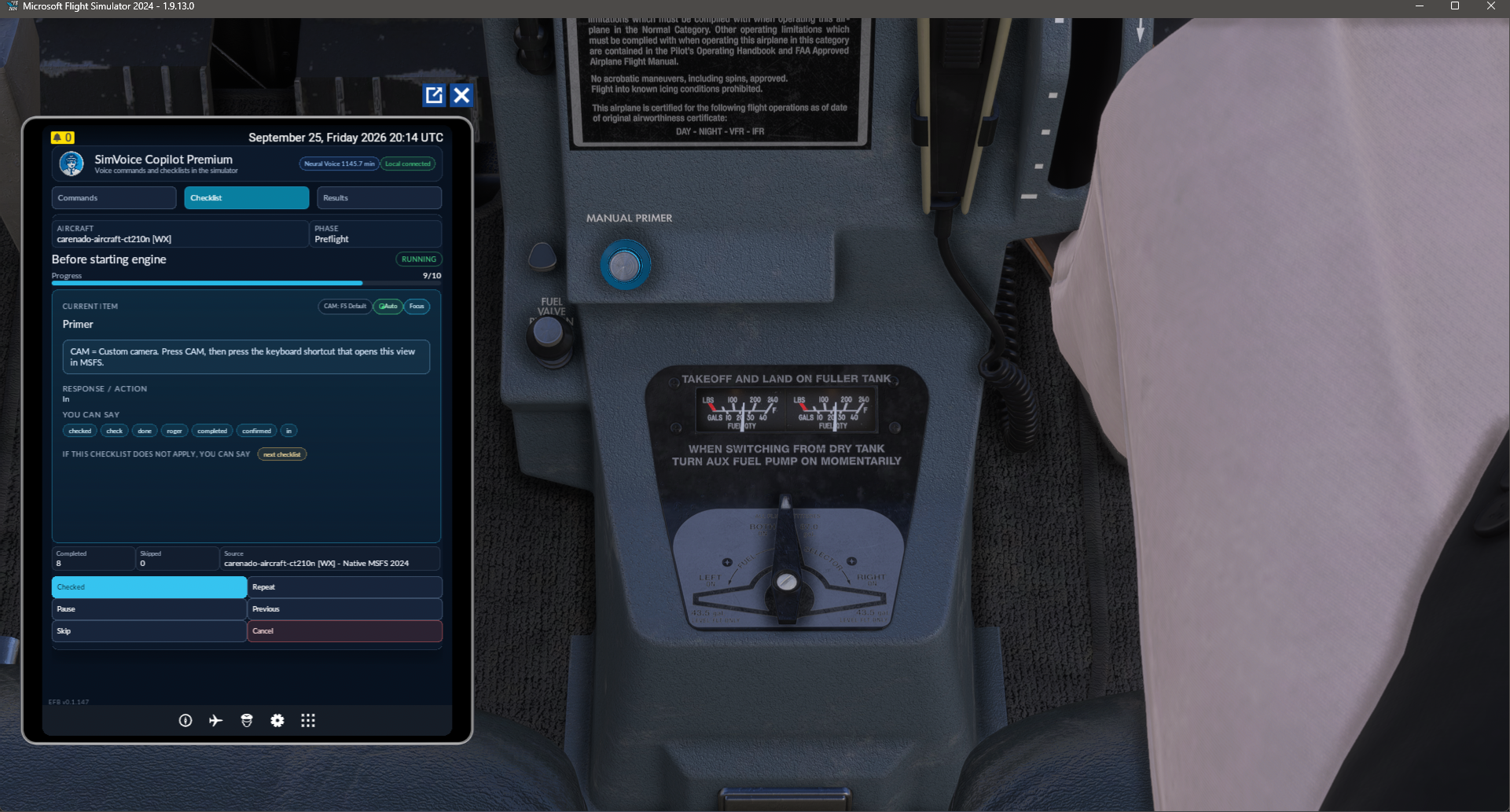
Figure 21. SimVoice Copilot active checklist view inside the MSFS 2024 EFB.
Figure 22. SimVoice Copilot Commands view inside the MSFS 2024 EFB.
Figure 23. SimVoice Copilot checklist selection inside the MSFS 2024 EFB.
Figure 24. SimVoice Copilot Results view inside the MSFS 2024 EFB.
The EFB remains the bridge for the Commands, Checklist and Results views and for the native checklist catalog path.
The simtech-simvoice-wasm-bridge package remains available for aircraft-specific functions that require WASM/ModelBehavior access. In current releases it is not the mechanism used merely to retrieve the resolved Native MSFS 2024 checklist catalog.
Managed-restart checklist restoration
Current releases keep one-shot managed checklist restoration semantics.
After a SimVoice-managed restart:
- the active checklist is preserved;
- the current item is preserved;
- compatible progress is preserved.
The restoration uses stable checklist/source identity and avoids depending only on localized text. While MSFS 2024 continues to evolve its native catalog delivery, SimVoice Copilot avoids restoring or selecting the wrong intermediate checklist.
A normal manual launch of SimVoice Copilot should not automatically restore an old checklist. Restoration is one-shot and associated only with the managed restart flow.
Checklist custom cameras
Checklist custom cameras are a per-item feature and should not be treated as a solution limited to one specific aircraft.
If two consecutive items request the same camera and nothing in between physically changed the camera, SimVoice Copilot does not send the shortcut again.
If a helper or another action really changed the view, SimVoice Copilot can reapply the requested camera.
AUTO OFF / reset uses the universal camera reset:
1 (>A:CAMERA REQUEST ACTION, Enum)
It does not depend on Shift+1. When a checklist ends, SimVoice Copilot clears the camera state/lease and requests the corresponding reset.
Focus and Auto
When compatible helper data exists, Focus asks MSFS to focus the control associated with the current item and Auto requests Focus automatically as the checklist advances. Supported native integrations also keep the canonical current item aligned with the simulator checklist, including relevant multiple avionics displays where supported.
Voice Checklists do not provide mandatory physical switch-state verification for every aircraft and every control. When no compatible state is available, spoken acknowledgement is the action that allows progression.
Related cockpit notes
Use Virtual Scratch Pad in Windows or the MSFS 2024 EFB to capture ATC clearances and taxi instructions alongside the checklist. The Scratch Pad is a separate note area; it does not automatically mark checklist items complete.
Virtual Scratch Pad: Windows and MSFS 2024 EFB
Virtual Scratch Pad is a cockpit note panel available in the Windows companion and the integrated MSFS 2024 EFB. It is useful for recording ATC clearances, taxi routes, runway assignments, frequencies, squawk codes, QNH and short reminders.
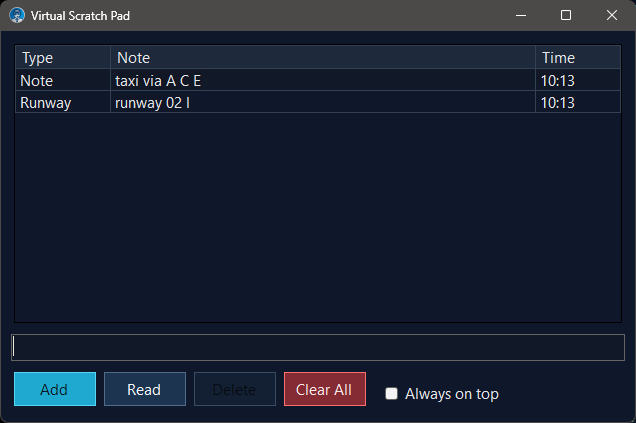
Windows Virtual Scratch Pad: note category, content, timestamp, text field and management controls.
Using it in Windows
- Open Virtual Scratch Pad in SimVoice Copilot.
- Review existing notes in the table. Each record shows a type, note text and time.
- Type a note in the input field and select Add, or capture a supported note by voice through the active command profile.
- Select a record and choose Read to hear it, or Delete to remove that selection when available.
- Clear All removes all notes; verify that you intend to clear the current pad.
- Enable Always on top if you need the panel to remain visible over other Windows windows.
The exact voice phrases supported for note capture and management depend on the active language/profile; consult Commands and avoid assuming a translated phrase will work without an entry.
In-simulator EFB
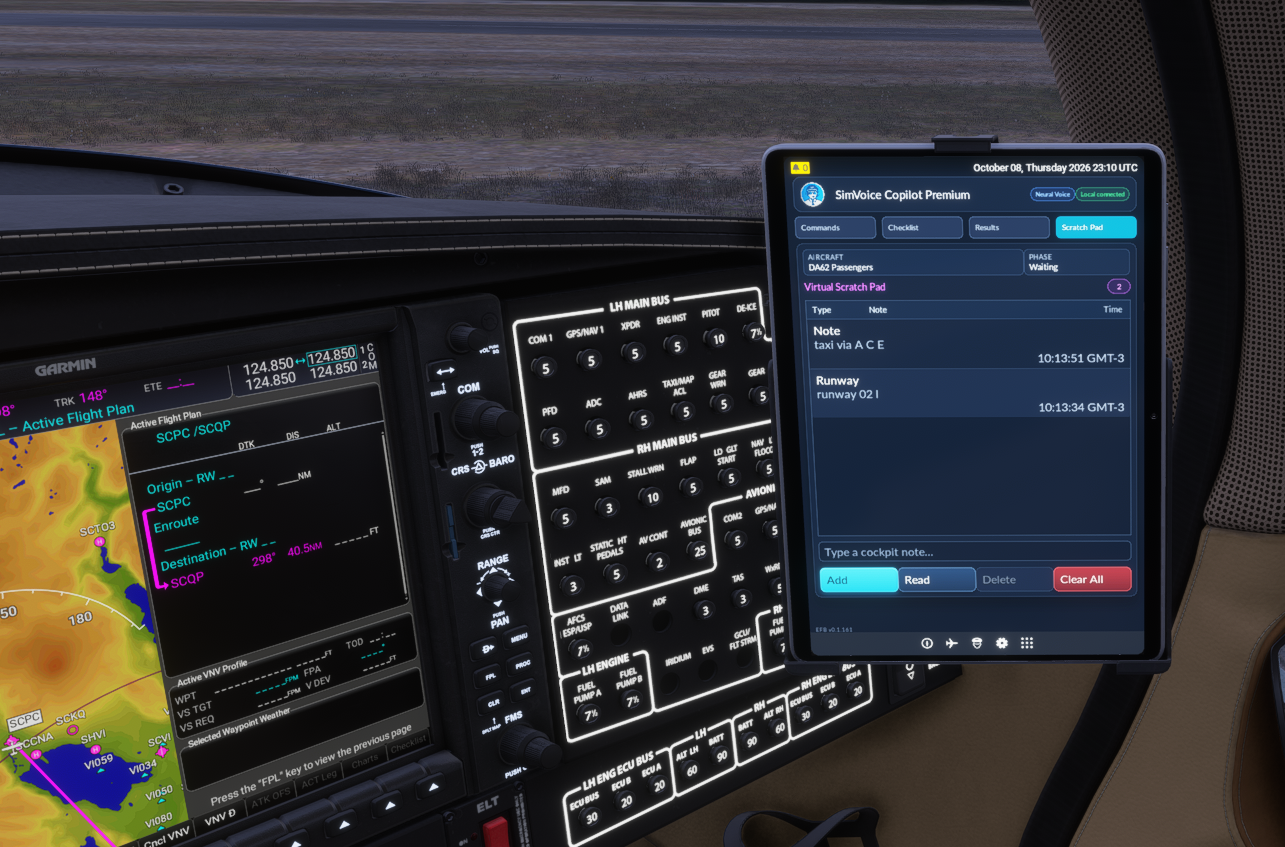
MSFS 2024: open the Scratch Pad tab alongside Commands, Checklist and Results.
The EFB displays the shared notes with categories and times; the note field and Add / Read / Delete / Clear All actions are available in the simulator view. Review or record a clearance without needing to switch to the Windows desktop.
Notes are an aid to simulated cockpit workload. Confirm clearances and navigation values from their original source; the scratch pad is not a real-world ATC or navigation service.
Advanced Actions, AI Command Builder and Neural Voice
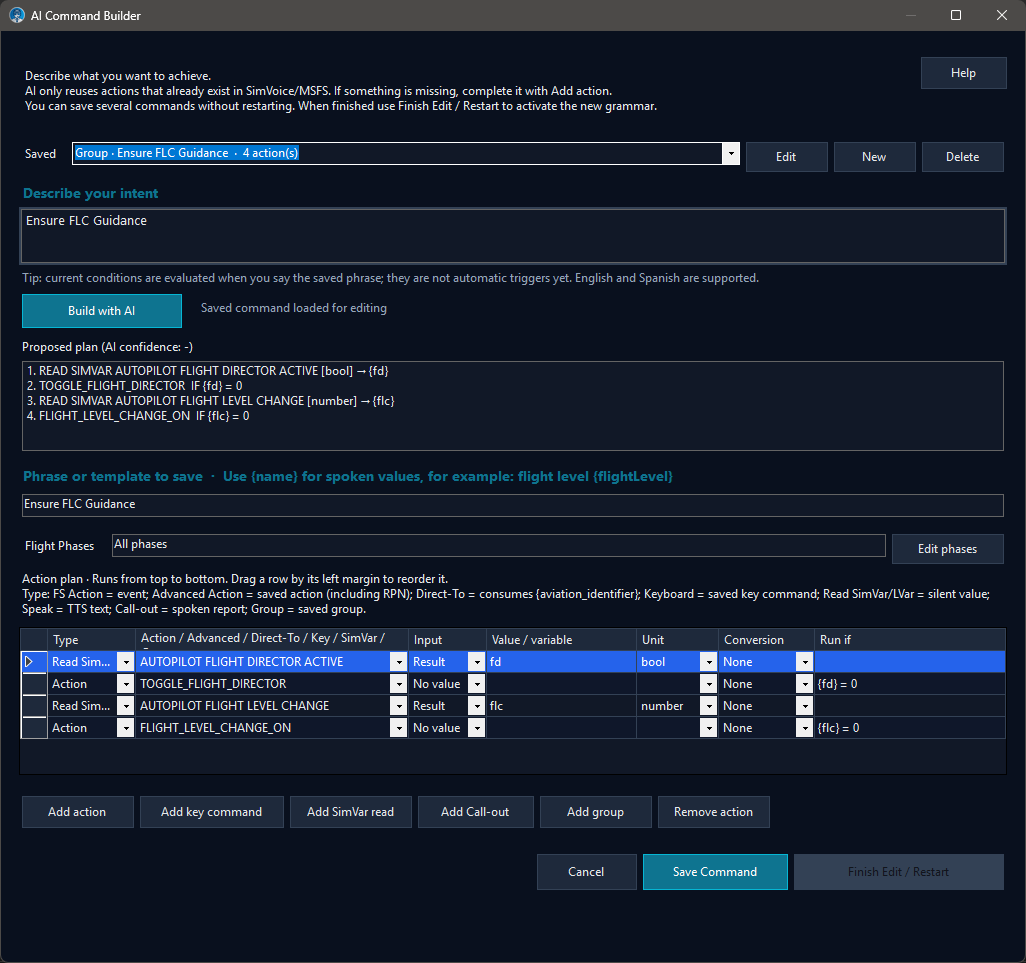
AI Command Builder editing the curated Cruise Flight Level group.
AI Command Builder is a Premium design tool for creating deterministic voice workflows from natural-language intent.
Nothing executes while you are building or editing. AI can interpret intent, but it cannot invent simulator events, invent aircraft integrations or bypass the SimVoice catalogue.
Advanced Actions, AI Command Builder and Command Groups
AI Command Builder sits on top of the normal SimVoice configuration. It creates a Command Group: an ordered workflow that is saved with its own phrase or phrase template. Once saved, that group can be called and executed by saying the assigned phrase.
The AI part only tries to assemble a safe plan from capabilities that SimVoice Copilot actually knows. If it cannot resolve the complete request, No safe match means that automatic planning stopped instead of guessing. It does not mean the group cannot be created.
You can complete or replace the plan manually in Action plan using the supported step types:
- Action / parameterized Action — select a real simulator action directly from the SimVoice catalogue. It does not need to exist first as a separate Voice Command.
- Advanced Action — reuse a compatible advanced catalogue action, including aircraft-specific actions when available for the active aircraft.
- Keyboard Command — reuse a keyboard command already configured in Keyboard Settings. Create or configure it there first, then add it to the group.
- Read SimVar — select a supported SimVar directly, read it silently and optionally store the value for later conditions. A spoken call-out is not required first.
- Call-out — when the group uses one of your configured spoken SimVar call-outs, that call-out must already exist in SimVar Call-outs.
- Group — reuse another compatible group that has already been created and saved in AI Command Builder.
In other words, Profile Customization and the normal configuration screens define reusable building blocks, while AI Command Builder combines supported building blocks and catalogue actions into a higher-level voice workflow. The Builder does not invent missing simulator events, SimVars, keyboard shortcuts, call-outs or child groups.
Relationship between these features
- Advanced Action → direct execution
- Advanced Action → AI Command Builder → Command Group → voice phrase
This relationship is especially useful when a complex aircraft integration already exists and you want to reuse it inside a higher-level spoken procedure without first creating a separate normal Voice Command.
Build a plan
- Open AI Command Builder.
- Enter the desired workflow in Describe what you want to achieve.
- Select Build with AI.
- Review Proposed plan and AI confidence.
- Review or edit the Action plan.
- Set the final phrase/template and optional flight phases.
- Select Save command.
Rows execute from top to bottom and can be reordered.
Supported steps include real simulator Action, parameterized Action, compatible Advanced Action, existing Keyboard Command, silent Read SimVar, spoken Call-out and compatible saved Group.
A saved Group can call another saved Group. This allows hierarchical reusable procedures instead of duplicating the same step list across multiple workflows.
Spoken values and conversions
Cruise flight level {level} can use flight_level_to_feet so Flight Level 210 becomes 21,000 feet for AP_ALT_VAR_SET_ENGLISH or for a compatible aircraft-specific altitude action.
Conditions
A Read SimVar can store PLANE ALTITUDE → {alt}. A later action can use a numeric condition such as {alt} <= 10000. Variables must be produced by an earlier row.
Aviation identifiers and Direct-To
Current versions also support reusable aviation identifiers in compatible workflows. These identifiers allow spoken values such as airports, waypoints or radio navaids to be captured safely and passed into supported actions.
On currently supported Garmin workflows, this enables actions such as Direct-To for the Garmin G1000 NXi and Working Title GNS 530. The underlying identifier is validated before the workflow continues.
Aircraft-specific example
A compatible Set MCP Altitude Advanced Action can be used on aircraft such as the PMDG 737-800 or iFly 737 MAX 8. In those integrations, the action can accept a value, send it through the aircraft-specific route and verify the actual readback before the plan continues.
Not every aircraft exposes the same advanced capabilities. The available catalogue depends on the aircraft and integrations currently supported by SimVoice Copilot.
Factory groups
Fresh Premium profiles include ten editable examples:
- Prepare for Taxi
- Prepare for Takeoff
- After Takeoff Cleanup
- Climb Through Ten Thousand
- Cruise Flight Level
{level} - Descent Through Ten Thousand
- Approach Heading
{heading} - Landing Configuration
- After Landing
- Parking Configuration
These are generic simulator workflows, not aircraft SOPs.
Community Packs
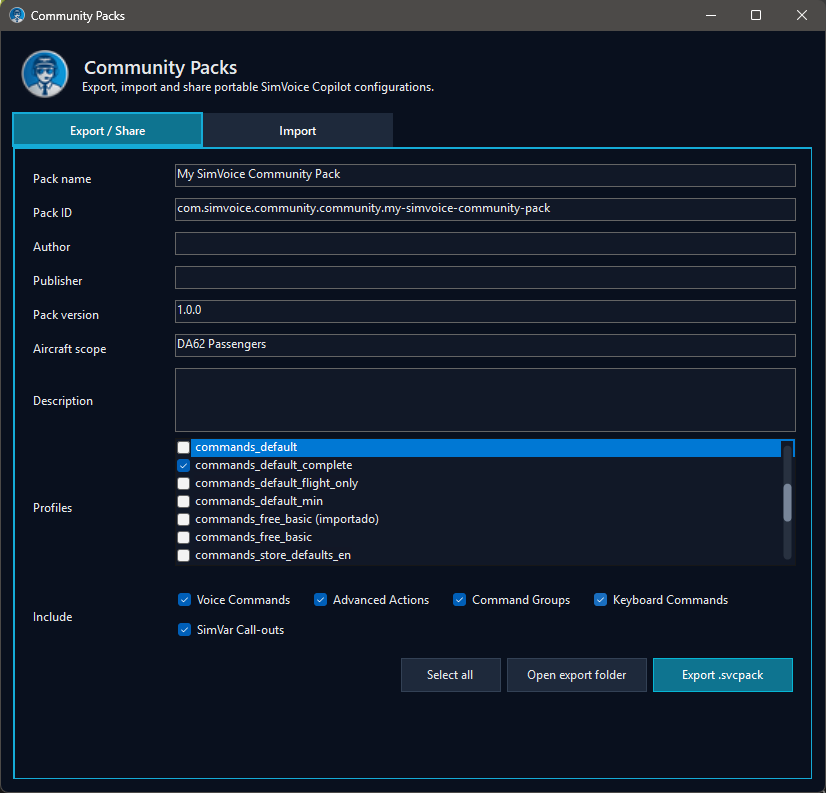
Figure 25. Export/share a Community Pack.
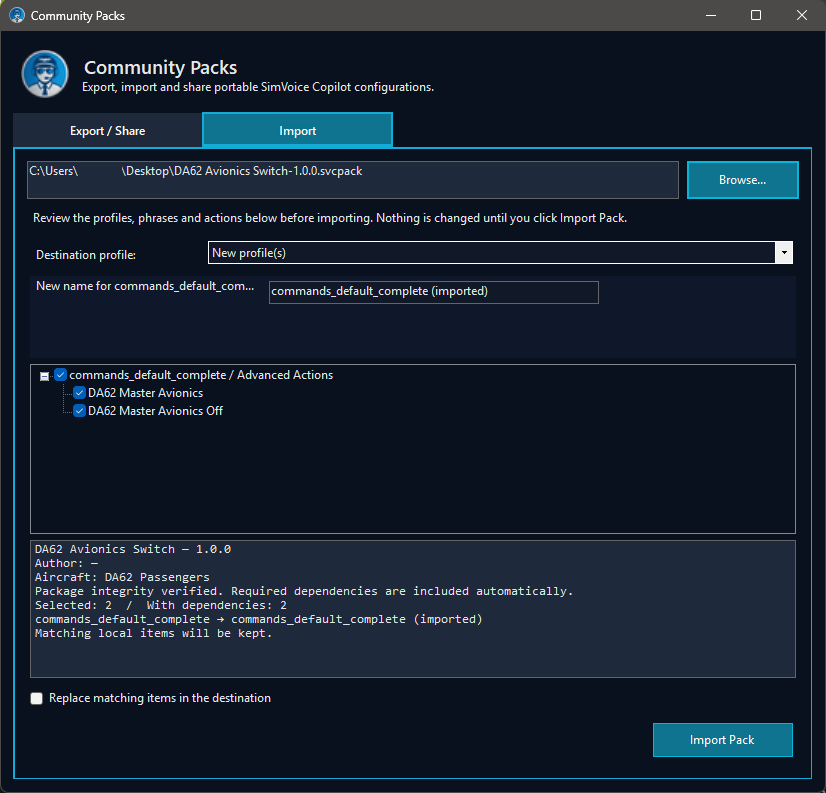
Figure 26. Preview and import a Community Pack.
Community Packs are portable .svcpack files that let users share supported SimVoice content.
A pack can include compatible combinations of:
- voice commands;
- keyboard commands;
- SimVar call-outs;
- Command Groups;
- profiles and related metadata.
During import, SimVoice Copilot validates the file, shows a preview and allows selective import behavior. Imported profiles are created as new profiles rather than overwriting the currently selected profile in place.
Optional local AI model
Natural-language plan generation uses the optional local model (approximately 2.3 GB). Standard commands, direct Advanced Actions, Community Pack import/export and checklists continue to work without it.
Neural Voice — Premium
Neural Voice is separate from local plan generation. Premium offers 13 voices. Only fresh cloud generation debits generated-minute balance; local/server cache playback uses 0 additional minutes. System Voice remains the fallback.
Community Packs and command catalog export
Community Packs let SimVoice Copilot users move supported configuration between installations and share reusable setups with other users without manually copying individual profile files.
A Community Pack is a portable .svcpack file created and read by SimVoice Copilot.
Open Community Packs
From the main window, select Community Packs.
The Community Packs window provides two workflows:
- Export / Share — create a portable pack from compatible SimVoice content.
- Import — open a pack, review its contents and decide what to apply before any changes are made.
Export / Share a pack
Figure 25. Community Packs Export / Share with pack metadata and content selection.
When creating a pack, describe it clearly so another user can understand what it contains. Depending on the content being shared, the pack can include metadata such as:
- pack name;
- pack ID;
- author or publisher;
- version;
- aircraft scope;
- description.
Compatible selectable content can include:
- profiles and voice commands;
- Advanced Actions associated with those profiles;
- Command Groups;
- Keyboard Commands;
- SimVar Call-outs.
The pack stores only supported SimVoice configuration. It does not package aircraft files, simulator add-ons or arbitrary external files.
Import and preview before applying changes
Figure 26. Community Pack preview before importing changes.
- Open Community Packs.
- Select the Import tab.
- Browse to the
.svcpackfile. - Review the human-readable preview.
- Confirm which compatible content should be imported.
- If a conflict is shown for shared/selective content, decide whether it should remain untouched or be replaced.
- Select Import Pack only after reviewing the preview.
A complete imported profile never overwrites an existing profile. SimVoice Copilot creates a new profile name when necessary, using localized imported suffixes such as
(imported)/(importado)and additional numbering when required.
After a successful profile import, the newly imported profile can become the active profile automatically so it can be reviewed immediately.
Conflict behavior
Replace conflicts applies only to compatible shared/selective content where replacement is explicitly offered. It does not turn full-profile import into an overwrite operation.
If a pack contains content that is not supported by the current entitlement or current application version, the import preview is the authority for what can actually be applied.
After import
SimVoice Copilot reports when the imported changes require recognition data to be refreshed or the application to be restarted. Follow that prompt before testing newly imported spoken phrases.
Export the command catalog separately
Community Packs are intended for portable configuration sharing. If you only need a readable inventory for documentation or review, use the window system menu option Export Commands to Excel/CSV... instead.
That export creates a consolidated command catalog in .xlsx or .csv format and includes user-facing command information and Advanced Actions metadata where applicable.
Recommended sharing workflow
- Test the source profile or workflow locally.
- Create a Community Pack with a clear name, version and description.
- Export the
.svcpack. - On the receiving installation, open Import and read the preview before applying changes.
- Test imported commands on the ground before relying on them in flight.
Aviation identifiers, ICAO codes and Direct-To
New in 1.1.14: for broader Garmin FMS voice workflows, see Flight plans and FMS by voice in this manual.
SimVoice Copilot supports reusable aviation identifiers for dynamic voice workflows. Direct-To is the first major consumer of this capability, but the identifier parser is not tied only to Direct-To.
Aviation identifiers and ICAO-style input
An aviation identifier is an alphanumeric navigation identifier spoken using aviation phonetics, individual characters or compatible recognition patterns.
Examples:
Sierra Charlie Echo Lima -> SCEL
Alpha Bravo One Two Three -> AB123
Sierra Charlie Charlie November -> SCCN
Repeated characters are preserved. This matters for identifiers such as SCCN where two consecutive letters are intentional.
In compatible Command Groups and AI Command Builder workflows, the reusable dynamic value is:
{aviation_identifier}
This means a phrase can be designed around the user's own wording, for example:
Take me to {aviation_identifier}
Select airport {aviation_identifier}
Enter waypoint {aviation_identifier}
The recognized spoken value is converted to its canonical identifier before the action consumes it.
Figure 27. AI Command Builder showing Direct-To as an action type that consumes {aviation_identifier}.
Direct-To workflow
Version 1.1.14.0 currently certifies voice Direct-To workflows for compatible:
- Garmin G1000 NXi;
- Working Title GNS 530.
The workflow can enter and activate navigation identifiers supported by the active Garmin/navdata environment, including:
- airport ICAO identifiers such as
SCELorSCIP; - waypoints/fixes such as
ARUNI; - VOR identifiers;
- NDB identifiers where supported by the active database/workflow.
This is not a claim of universal Direct-To control for every FMS or GPS implementation. Additional avionics families require their own integration.
Duplicate identifiers
The same short identifier can exist at more than one physical facility. For example, a VOR ident can be reused in different countries or regions.
When the Garmin displays a duplicate-waypoint/facility list, SimVoice Copilot uses the compatible Garmin workflow to select and confirm the intended facility before the final Direct-To activation step.
If a duplicate list appears unexpectedly, review the active Garmin selection before continuing and export a Support Package if SimVoice selects the wrong facility reproducibly.
Near and distant facilities
The Direct-To workflow is not limited to nearby airports. Current verification resolves compatible navigation facilities and evaluates the active navigation guidance rather than assuming that a distant target is invalid simply because it is far from the aircraft.
Execution and verification
When the simulator exposes enough navigation state, SimVoice Copilot verifies that the requested Direct-To became active.
If the physical avionics sequence was sent but the simulator does not expose enough evidence to prove the final state, the user-facing confirmation can be:
Direct to executed
This means the execution sequence was sent; it is intentionally different from claiming a verified navigation state.
Push-to-Talk and continuous recognition
Aviation identifiers are supported in compatible Push-to-Talk and continuous-recognition workflows. Speak the full identifier clearly and avoid inserting unrelated words between phonetic characters.
For Push-to-Talk, hold the assigned control for the entire identifier and release it after the final character.
Recommended Direct-To test
- Test on the ground with the supported Garmin powered and initialized.
- Use a known airport identifier first.
- Then test a waypoint or radio navaid that exists in the active navigation database.
- Test a duplicate identifier if you want to verify facility-selection behavior.
- Confirm the resulting target visually in the Garmin before relying on it in flight.
If the identifier is entered but the intended target does not activate, open Feedback / Results and immediately export a Support Package.
Flight plans and FMS by voice
SimVoice Copilot can perform compatible flight-plan and Garmin FMS operations by voice, including navigation identifiers, origin/destination, waypoints, Direct-To, runway selection and supported SID/STAR/approach workflows. Availability depends on the aircraft and avionics implementation.
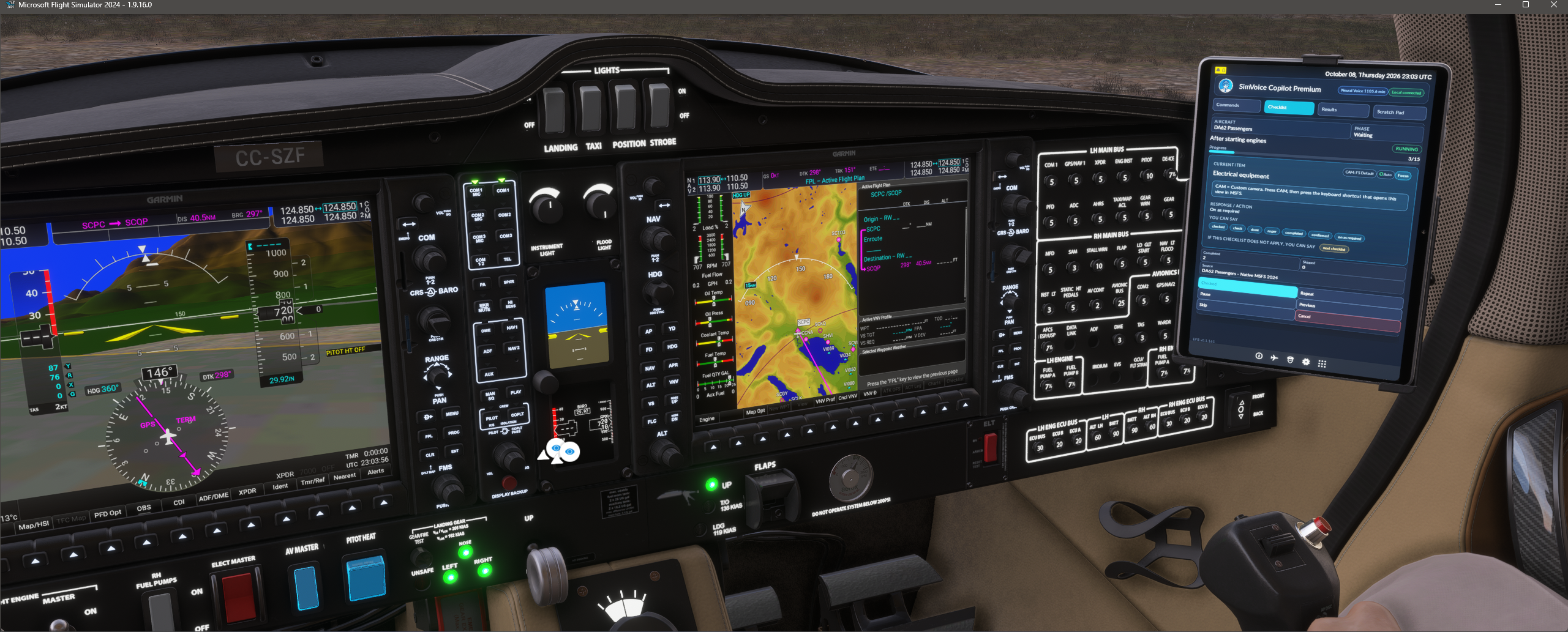
Cockpit view with Garmin FMS and SimVoice EFB. The image illustrates the avionics context, not the execution of a particular spoken FMS command.
Compatible Garmin environments
The current integration includes workflows for G1000 / G1000 NXi, G3000 and Working Title GNS 530/430 as supported by the active aircraft. Do not assume the same command can modify every third-party FMS.
Working with a flight plan
- Power and initialize the active Garmin avionics, and confirm the expected aircraft/profile.
- Speak the origin or destination identifier using ICAO phonetics as needed; verify the resulting FMS field.
- Add or select compatible waypoints and route legs through the supported voice workflow.
- Where available, select departure or arrival procedures, runway and transitions. Include runway designators and approach suffixes (for example ILS W RWY 01) exactly as intended.
- For Direct-To, make sure the intended facility appears, especially when identifiers are duplicated.
- Check the rendered plan, active leg and procedure in the aircraft before flight.
Example identification
-
Sierra Charlie Echo Lima→SCEL. -
Sierra Charlie Quebec Papa→SCQP. - An approach may have W / X / Y / Z suffixes; omitting the suffix can leave more than one candidate. Spoken tokens may be split in continuous recognition, so wait for command completion.
No generic guarantee: SimVoice must have an aircraft/avionics adapter that supports the requested action; the visual presence of an FMS does not imply voice editing support. For complete aviation-identifier handling and Direct-To, see the adjacent section.
Dedicated FMS command-entry screenshots were not included in the current screenshot set. The picture above is only an overview. Add a captured FMS operation screen in a future visual pass.
Troubleshooting
Basic checklist
- MSFS 2020 or 2024 is running on the same PC and an active flight is loaded.
- The main screen shows Flight Simulator: Connected.
- The correct microphone and voice-command language are selected.
- The required Vosk model is installed.
- Push-to-Talk is disabled or currently held.
- The command appears in the Commands tab for the current phase.
- The correct aircraft and checklist source are shown in Checklists.
- The Feedback / Results tab has been checked.
Common voice-command symptoms
The app hears nothing
Check the microphone selection, Windows microphone permission, input level and Push-to-Talk assignment. Run Test Voice Recognition. After a reinstall, verify the selected microphone because Windows can provide a different default input device.
Voice capture is not ready immediately after launch
Wait for Results / Feedback to report that command capture is available. SimVoice may still be loading checklist catalogs or startup content in the background after voice capture becomes ready.
A phrase is heard but not executed
Feedback reports the heard text and indicates when no matching command was found. Confirm the exact phrase, active profile and current flight phase.
A complete numeric sentence asks for the value again
This is the safe fallback. SimVoice first tries to resolve the command and number together. If the number is incomplete, contains an unknown token or fails validation, the app asks only for the value instead of executing an uncertain setting. Speak the requested number clearly after the prompt.
The app remains waiting for a value
Say Cancel or Cancelar. The request also cancels after two invalid values or the configured timeout without a valid response.
A Direct-To or aviation identifier is not accepted
Confirm that the command/group actually uses a compatible action that expects {aviation_identifier}. Speak the identifier clearly using the intended aviation wording. Review Feedback / Results to see whether the identifier was captured, rejected or failed later validation.
Spanish recognition is unavailable
Select Spanish in Settings and accept the automatic Vosk-model download.
Spanish sounds like English
Install a compatible Spanish Windows text-to-speech voice and select it in Settings.
Two spoken responses overlap
Current versions serialize TTS playback. If overlap occurs, create a support package immediately and include the selected output device, whether a checklist was active and the approximate time.
Advanced Actions and aircraft-specific actions
An aircraft-specific Advanced Action is not available
Confirm the active aircraft and whether a compatible integration exists for that aircraft. Not every aircraft exposes the same Advanced Actions.
An MCP action does not execute
Confirm that the simulator connection is active, the intended aircraft is loaded and the relevant cockpit system is available. For aircraft-specific integrations, verify that you are testing the action on the supported aircraft family.
A Garmin Direct-To workflow does not execute
Confirm that you are using a currently supported avionics path such as Garmin G1000 NXi or Working Title GNS 530, that the relevant avionics are powered and initialized, and that the plan/action really targets the compatible Direct-To implementation.
An A32NX-specific action does not behave as expected
The FlyByWire A32NX is certified with Full SimVoice Support. Confirm that the simulator connection is active, the A32NX is the detected aircraft and the relevant cockpit system is initialized. For altitude workflows, confirm that the FCU is available; SimVoice Copilot uses aircraft-specific FCU logic, including the 100/1000 selector, exact target values, readback verification and selector restoration when required.
Community Pack symptoms
A Community Pack cannot be imported
Confirm that the file is a valid .svcpack, generated by a compatible SimVoice Copilot version and not truncated or blocked by Windows. Review Feedback / Results for validation details.
Imported content does not appear where expected
Imported profiles are created as new profiles rather than overwriting the current one in place. Check the profile selector, relevant feature window and Feedback / Results for the import summary.
A pack contains content I do not want to replace
Use the preview/import flow and choose the selective behavior that preserves your current compatible content when the dialog offers that option.
Voice Checklist symptoms
No checklist is shown
- Confirm that the aircraft is fully loaded in an active flight.
- Confirm Flight Simulator: Connected.
- In MSFS 2024, open the SimVoice Copilot EFB page if you expect Native MSFS 2024 sources.
- Allow automatic aircraft selection/catalog refresh to complete.
- Use Search to inspect the full catalog rather than assuming only the active-aircraft source exists.
- Test Import if you are working with an external checklist.
A native MSFS 2024 source does not appear
- Open the SimVoice Copilot EFB page in the loaded MSFS 2024 flight.
- Confirm the EFB shows a local connection to the Windows application.
- Wait for the loaded aircraft to finish initializing.
- Change away from and back to the checklist source only after the aircraft change has completed.
- Remember that native availability depends on the checklist model exposed by the aircraft.
The native checklist catalog is obtained through the EFB integration. Installing the WASM bridge is not required merely to make a native checklist catalog appear.
Search cannot find a checklist
Search matches text contained anywhere in the source/list name. Try one or two distinctive words. Matching is case-insensitive and ignores accents/diacritics.
A named checklist is not recognized
- Repeat the checklist name clearly.
- Try the full list name.
- Use next checklist as a fallback.
- Export a Support Package if a compatible list name fails repeatedly.
The item is read but my acknowledgement is ignored
- Confirm that the configured phrase belongs to the active recognition language.
- Wait until the TTS item finishes before speaking.
- Check Push-to-Talk.
- In Spanish, try a short response such as comprobado, hecho, entendido or listo.
- If the item expects ON or OFF, Spanish recognition also accepts encendido or apagado.
- Run Test Voice Recognition and review Feedback.
One acknowledgement appears to skip the next item
Current versions include protection against delayed duplicate recognition results, including repeated forms such as comprobado comprobado. If an item is still skipped, create a support package immediately and include the approximate time, checklist name, item before the skip and item after the skip.
Checklist speech uses the wrong language
Check Application Language, Voice Recognition Language and the selected Windows Copilot Voice. Recognition and TTS are separate settings. A document can temporarily contain translated and untranslated pages; the selected page uses its actual language.
Checklist selectors remain disabled after Cancel
Current versions restore the checklist selectors immediately after Cancel unless a real catalog scan is still running. If the controls remain disabled after the scan has finished, create a support package.
Checklist restore did not happen
Checklist restoration is only expected after a SimVoice-managed restart. A normal manual application launch should not restore an old checklist automatically.
Checklist custom camera does not trigger as expected
Confirm that the checklist item has a CAM binding and that the shortcut itself is configured correctly. If two consecutive items request the same camera and nothing changed the view physically, SimVoice Copilot intentionally keeps the existing view and does not resend the same shortcut.
Other symptoms
The event list or SimVar list looks incomplete
Built-in catalog entries are available immediately; online refresh runs in the background. Reopen the configuration window later to use newly downloaded entries. If the main interface stops responding, create a support package after restarting the app.
A command export does not generate the expected file
Retry from the window system menu and confirm that the selected destination folder is writable. If the problem persists, export a Support Package and include the intended format (.xlsx or .csv).
A call-out reports an incorrect value
Verify the SimVar, unit, aircraft and response format. Use {0:0.0} for one decimal place. For SIMCONNECT WIND, {0} is direction and {1} is speed.
Check wind is unavailable
Confirm an active SimConnect flight session. Ambient wind values may be unavailable during simulator loading or connection loss.
SimVoice does not close after Flight Simulator
Automatic closing is enabled only after a confirmed SimConnect session. Wait a few seconds after the simulator exits. If SimVoice remains open, generate a support package after restarting it and report the approximate simulator shutdown time.
AI appears to do nothing
This is expected when deterministic recognition already matches the phrase. AI is a fallback.
When a problem continues
Reproduce the issue once more if it is safe to do so, then immediately create an Export Support Package from the window system menu. Include the generated ZIP with the approximate time, exact phrase, expected result, simulator version, aircraft, checklist source/name and current item when applicable.
Known limitations
- English, Spanish and Brazilian Portuguese (PT-BR) are available for the interface and voice-recognition workflows, subject to an installed compatible language model and voice.
- Some uncommon PT-BR terms may not exist in the bundled small recognizer vocabulary; no universal accuracy is guaranteed.
- One-phrase numeric commands remain limited to supported parameter types and patterns.
- A compatible Vosk model and compatible Windows TTS voice are required for the selected language.
- The two-step fallback remains necessary when a complete phrase cannot be resolved safely.
- Recognition accuracy depends on microphone quality, the Windows input device selected, ambient noise, pronunciation and how similar different phrases sound.
- Third-party aircraft can expose events, variables and checklists differently from the default simulator aircraft.
- Some aircraft systems ignore standard SimConnect events or require aircraft-specific Input Events, WASM/ModelBehavior behavior or vendor integration.
- Advanced Action availability depends on the active aircraft and the integrations currently supported by SimVoice Copilot; not every aircraft exposes the same advanced catalogue.
- The availability of Native MSFS 2024 checklists depends on the checklist model exposed by the loaded aircraft through the simulator/EFB integration.
- The active aircraft influences automatic checklist selection, but it does not hide the rest of the available catalogue.
- Voice control of checklist names tolerates some imperfect recognition results, but it is not guaranteed to resolve every possible wording.
- New Spanish checklist translations that are unavailable in local/shared cache require Internet access.
- Checklist translation is page/list based; a large aircraft can temporarily contain translated and untranslated pages at the same time.
- The optional local AI package is not required for checklist translation.
- The MSFS 2024 WASM bridge is not required merely to retrieve the native checklist catalog resolved through the EFB, but it is still required for aircraft-specific integrations that use the bridge.
- A simulator restart can be required after first bridge installation or bridge update.
- Voice Checklists do not guarantee physical switch-state verification for every aircraft and every control. When state is unavailable, spoken acknowledgement allows progression.
- Managed checklist restoration is only expected after a SimVoice-managed restart; a normal manual launch should not restore an old checklist automatically.
- Start SimVoice Copilot from the EFB depends on the Windows protocol registration created by the Microsoft Store installation; manual launch from Start remains available.
- SIMCONNECT FRAME RATE uses the SimConnect Frame system event and may not match every external performance overlay exactly.
- SIMCONNECT WIND reports ambient wind at the aircraft and is not an ATIS or airport forecast service.
- Automatic application closing requires a previously confirmed SimConnect session.
- Keyboard shortcuts depend on application focus and can conflict with other bindings.
- Community Packs are limited to supported portable SimVoice content. They do not package aircraft files, simulator add-ons or arbitrary external assets.
- Imported Community Pack profiles are created as new profiles rather than replacing an existing profile in place.
- Command export to Excel/CSV reflects the current SimVoice command inventory; it is a catalog export, not a simulator state export.
- Aviation-identifier and Direct-To workflows depend on currently supported integrations and validation rules; they are not universal across every avionics suite.
- AI Command Builder is Premium and requires the optional local model for natural-language plan generation.
- AI Command Builder does not invent simulator events.
- Neural Voice requires network access for audio not already cached.
- Premium Lifetime software access does not expire, but cloud generation uses the available generated-minute balance.
- Focus/Auto and native checklist synchronization remain aircraft-dependent.
Support and problem reports
Generate a support package
Before sending a report, open the SimVoice Copilot window system menu and select Export Support Package. Save the generated ZIP and attach it to the support request when requested.
The package may include:
- application, Windows and installation information;
- MSFS connection and detected aircraft;
- recognition language, mode and microphone configuration;
- active voice, call-out and keyboard profiles;
- recent Feedback, Vosk, AI and SimConnect diagnostic logs;
- numeric command routing and parameter-verification information;
- TTS queue and playback diagnostics;
- catalog refresh, pseudo SimVar and simulator shutdown diagnostics;
- checklist source discovery, selected aircraft, current list, current item and expected-response diagnostics;
- native MSFS 2024 checklist catalog/content-hash and aircraft-change diagnostics;
- checklist translation provider, local/shared cache and background-prefetch diagnostics;
- EFB local-connection, command-channel and checklist-state diagnostics;
- MSFS 2024 Community-path detection, bridge version, deployment, update and removal status;
- compatible Input Event or aircraft-specific bridge diagnostics;
- log-rotation status and an integrity manifest.
It excludes subscription credentials, license tokens, device identifiers used for licensing, microphone recordings, the local AI model and simulator package contents.
Include the following information in a support report:
- SimVoice Copilot version.
- MSFS 2020 or 2024.
- Aircraft and add-on developer.
- Application and voice-command languages.
- Exact phrase spoken and the phrase shown as heard.
- Expected and actual result.
- SimConnect event, Input Event, SimVar, pseudo SimVar and normalized value shown in Feedback when relevant.
- Checklist source/name, current item and acknowledgement phrase when applicable.
- Whether the checklist was native, translated or imported.
- Whether the MSFS 2024 EFB showed a local connection.
- Whether the WASM bridge is installed when the reported aircraft-specific function uses it.
- AI enabled or disabled.
- Current flight phase and active profile.
- Approximate time of the problem.
- Screenshot of the Feedback / Results tab.
- Repeatable steps.
Official channels
- Website: simvoicecopilot.com
- Online manual: simvoicecopilot.com/help/manual
- Discord: discord.gg/EHQrTVtebV
Some complex aircraft and third-party add-ons use custom controls that may require aircraft-specific SimVoice Copilot support. If a command works with other aircraft but not with yours, reproduce the issue and send us a Support Package including the aircraft/version, MSFS 2020/2024, the command used, and the expected/actual behavior. This allows us to analyze the aircraft implementation and add support when technically possible.
Quick reference
Quick reference
-
Connect to the simulator: Wait for Flight Simulator: Connected.
-
Use voice commands: Keep MSFS focused and say a configured phrase.
-
Numeric command: Say the command and value in one phrase, for example heading 270.
-
Advanced Action: Open Advanced Actions..., choose the action, test it directly and then reuse it inside AI Command Builder or a Command Group.
-
Test voice only: Use Test Voice Recognition.
-
Keyboard shortcut: Open Keyboard Settings, click Shortcut, press the desired keys and save.
-
Community Pack: Open Community Packs to export/share or preview/import a
.svcpack. -
Command export: Use Export Commands to Excel/CSV... from the window system menu.
-
Native MSFS 2024 checklist: Open the SimVoice Copilot EFB page; native sources are labeled Native MSFS 2024.
-
Named checklist: Try direct names such as Before Taxi, Before Takeoff, Landing or Shutdown.
-
Checklist search: Search matches text contained anywhere in the source/list name and tolerates accents.
-
Spanish checklist translation: Enable Spanish checklist speech and allow page-based translation/cache/prefetch.
-
Checklist acknowledgement: Say a configured confirmation such as checked, done, roger, comprobado or hecho.
-
ON/OFF in Spanish checklist: Say encendido or apagado when shown.
-
Repeat / Pause / Resume / Cancel: Use the checklist buttons or the corresponding supported workflow.
-
Next checklist: Say next checklist or siguiente lista when the displayed list does not apply.
-
Checklist restore: Expected only after a SimVoice-managed restart.
-
Custom checklist camera: Configure the CAM binding per item; identical consecutive requests keep the current view instead of resending the same shortcut.
-
EFB views: Use Commands, Checklist and Results inside MSFS 2024.
-
Start Windows app from EFB: Select Start SimVoice Copilot when there is no local connection.
-
WASM bridge: Required only for specific aircraft integrations that use the bridge, not simply to obtain the native checklist catalog.
-
Direct-To / aviation identifier: Use a compatible workflow on supported Garmin avionics and speak the identifier clearly.
-
Diagnose: Open Feedback / Results to see recognition, command, checklist, translation, Community Pack and EFB events.
-
Support: Export a support package and include the approximate time, aircraft and phrase.
-
Start Free: Install from Microsoft Store and continue with permanent Free access.
-
Free Welcome: Closing the Free Welcome with X is equivalent to Continue with Free.
-
Upgrade: Choose Premium Monthly or Premium Lifetime.
-
AI Command Builder: Build, review/edit and save a deterministic plan.
-
Command Group: Speak the saved phrase; actions run top to bottom and a group can call another group.
-
Neural Voice: Cached playback uses 0 additional generated minutes.
New workflow reference
- Virtual Scratch Pad: Windows panel / EFB Scratch Pad, add or capture a note, read a selected entry, delete/clear deliberately.
- FMS/flight-plan voice: verify aircraft and Garmin family, speak the full identifier/procedure, review FMS readback; never assume a procedure is selected from speech recognition alone.
- Speech rate: adjust in redesigned Voice Settings. Changing language or certain audio settings may trigger a managed app restart.
Terminology
Terminology
- Advanced Action — higher-level SimVoice catalogue action that can be executed directly or reused inside a group.
- AI Command Builder — Premium design tool that proposes and edits deterministic multi-step voice workflows.
- Aviation identifier — reusable spoken value such as an airport, waypoint or radio navaid captured for a compatible workflow.
- Call-out — spoken response generated from a SimVar reading.
- Checklist acknowledgement — spoken response that advances the current checklist item.
- Command Group / Group — saved ordered workflow that can be called by voice and can contain multiple supported step types.
-
Community Pack — portable
.svcpackfile used to export/share/import supported SimVoice content. - Direct match — phrase resolved without AI fallback.
- Direct-To — supported avionics workflow that routes the aircraft to a chosen airport, waypoint or radio navaid.
- EFB — Electronic Flight Bag. In MSFS 2024, SimVoice Copilot provides Commands, Checklist and Results views inside the EFB.
- Focus / Auto — compatible checklist aids that focus a cockpit control manually or automatically.
- Free Welcome — onboarding screen shown to Free users; closing it with X is equivalent to continuing with Free.
- Native MSFS 2024 checklist — checklist model obtained from the simulator through the in-sim EFB integration.
- Neural Voice — Premium cloud voice option with selectable voices and generated-minute balance.
- Profile — user-owned collection of voice commands for one language.
-
Pseudo SimVar — built-in SimVoice variable-like entry such as
SIMCONNECT FRAME RATEorSIMCONNECT WIND. - Read SimVar — silent group step that stores a SimVar value for later conditions.
- Support Package — diagnostic ZIP created from the application system menu.
Revision history
Revision history
-
Manual 2.3 / App 1.1.14.0 — 2026-10-09
- consolidated the previously unpublished 1.1.11 and Beta 1.1.12 features into the 1.1.14 public manual;
- updated localized screenshots across voice commands, Voice Settings, Advanced Actions, AI Command Builder, SimVar, Community Packs, checklists and Windows/EFB;
- added dedicated sections for aircraft control by voice, Virtual Scratch Pad and FMS/flight plans by voice;
- documented English/Spanish/PT-BR, speech rate, managed settings restart, personalized command priority, safer feedback and known recognition limitations;
- retained previous Free/Premium, checklist, aircraft compatibility, Neural Voice, support and other reference content.
-
Manual 2.2 / App 1.1.6.0 — 2026-09-25
- updated manual metadata and public edition to SimVoice Copilot 1.1.6.0;
- refreshed English and Spanish screenshots across Windows and MSFS 2024 EFB sections;
- documented Community Packs export/share/import;
- documented Export Commands to Excel/CSV... from the main window system menu;
- documented reusable aviation identifiers and supported Garmin Direct-To workflows;
- added dedicated Community Packs and Aviation identifiers / ICAO / Direct-To manual sections;
- corrected the Spanish MSFS 2024 EFB screenshot mapping so Commands, Checklist selection and Active Checklist match their captions;
- updated the public Home and Product pages to expose the new 1.1.6.0 capabilities without changing acquisition landing or checkout/marketing flows;
- expanded troubleshooting, quick reference, terminology and limitations for the new 1.1.6.0 workflows.
-
Manual 2.1 / App 1.1.4.0 — 2026-09-21
- updated the manual to SimVoice Copilot 1.1.4.0;
- documented Advanced Actions, AI Command Builder, Command Groups, Neural Voice and current Free/Premium behavior;
- documented MSFS 2024 EFB integration, Native MSFS 2024 checklist sources, named checklist voice control and managed checklist restoration;
- documented PMDG 737-800, iFly 737 MAX 8 and FlyByWire A32NX as highlighted supported-aircraft integrations.
-
Manual 2.0 / App 1.0.14.0 — 2026-08-31
- introduced the current manual structure and PDF/DOCX publishing pipeline;
- documented Voice Commands, SimVar Call-outs, Keyboard Commands, Flight Phases, Voice Checklists and Support workflows.