Voice Commands
Trigger configured actions, read simulator data and use dynamic parameters such as frequencies, headings and altitudes.
Voice commands, guided checklists, an in-sim EFB and cockpit assistance for Microsoft Flight Simulator 2020 and 2024.
SimVoice Copilot lets Microsoft Flight Simulator pilots control supported simulator functions and work through interactive checklists using spoken commands. It is designed to reduce cockpit hunting and keep attention on the flight.
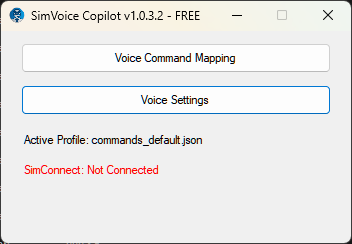 Guided checklists ready
This Vision Jet G2 demo shows the product inside Microsoft Flight Simulator 2024. Hear the expected checklist interaction, see the checklist advance and watch cockpit focus support the procedure.

Watch SimVoice Copilot run a Vision Jet G2 checklist in Microsoft Flight Simulator 2024 with spoken responses, automatic checklist progression and cockpit focus.
New videos can be added here as each feature receives its own demonstration.
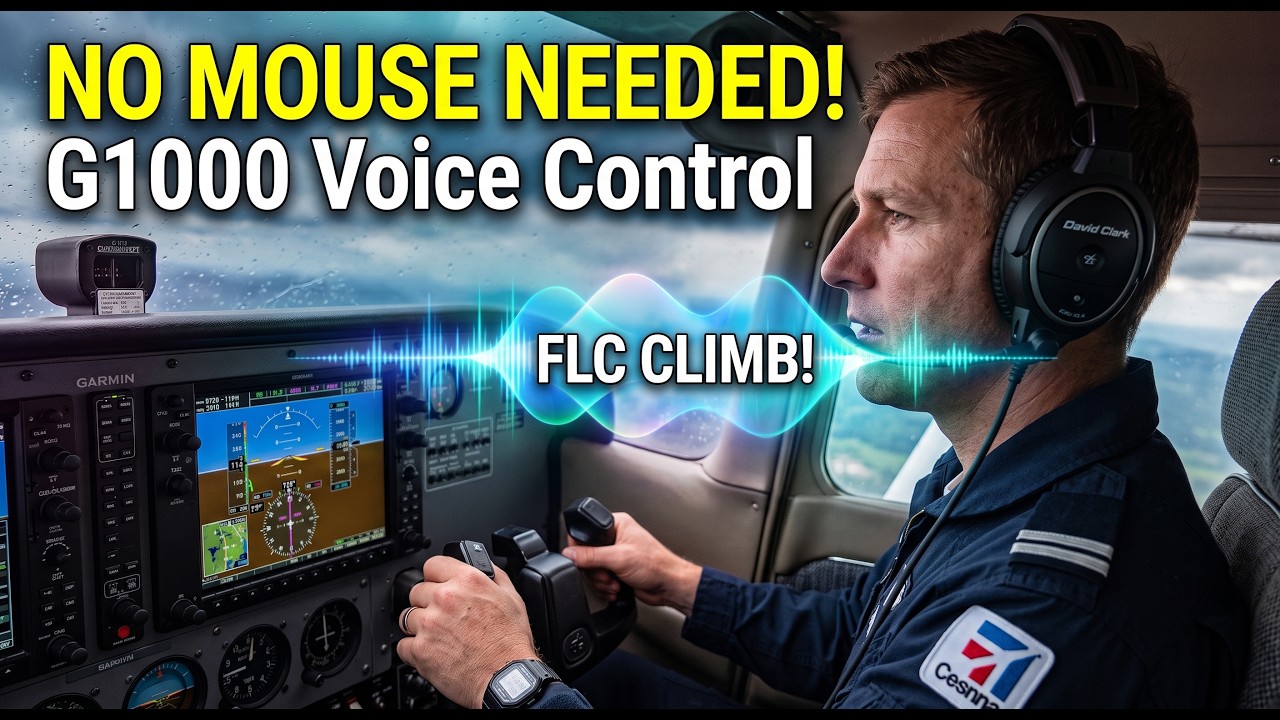
High in the flightsim sky demonstrates SimVoice Copilot 1.1.6.0 with a hands-free C172 G1000 workflow using native H-Events, live SimVars, conditional logic and Command Groups. The video covers G1000 voice control, Smart Climb automation, spoken ICAO Direct-To and profile/command sharing through import and export.
The creator received complimentary access to SimVoice Copilot. The video and opinions were produced independently. The creator also has a dedicated tracked link and viewer discount code.

Sim Copilot version 1.1 completely overhauls the virtual first officer experience in Microsoft Flight Simulator and the core tool is now permanently free for everyone. No more expiring trials, rigid XML syntax, or robotic Windows system voices. Version 1.1 introduces a Natural Commands Resolver that understands phrasing variations ("drop the gear", "wheels out"), an AI Command Builder to create entire flows in plain English, and 13 lifelike neural voices with seamless offline fallback. Whether you fly in VR or just want to keep your hands on the yoke without wrestling with menus, here is everything new in this update.

Can SimVoice Copilot turn a simple idea into a working cockpit voice command? In this real MSFS example, we tell AI Command Builder “prepare for takeoff”. SimVoice Copilot automatically creates a multi-action command that can then be executed from a single spoken phrase. One intent. Multiple cockpit actions. No scripting required. See how AI Command Builder makes custom voice control fast and accessible in Microsoft Flight Simulator 2020 and 2024.
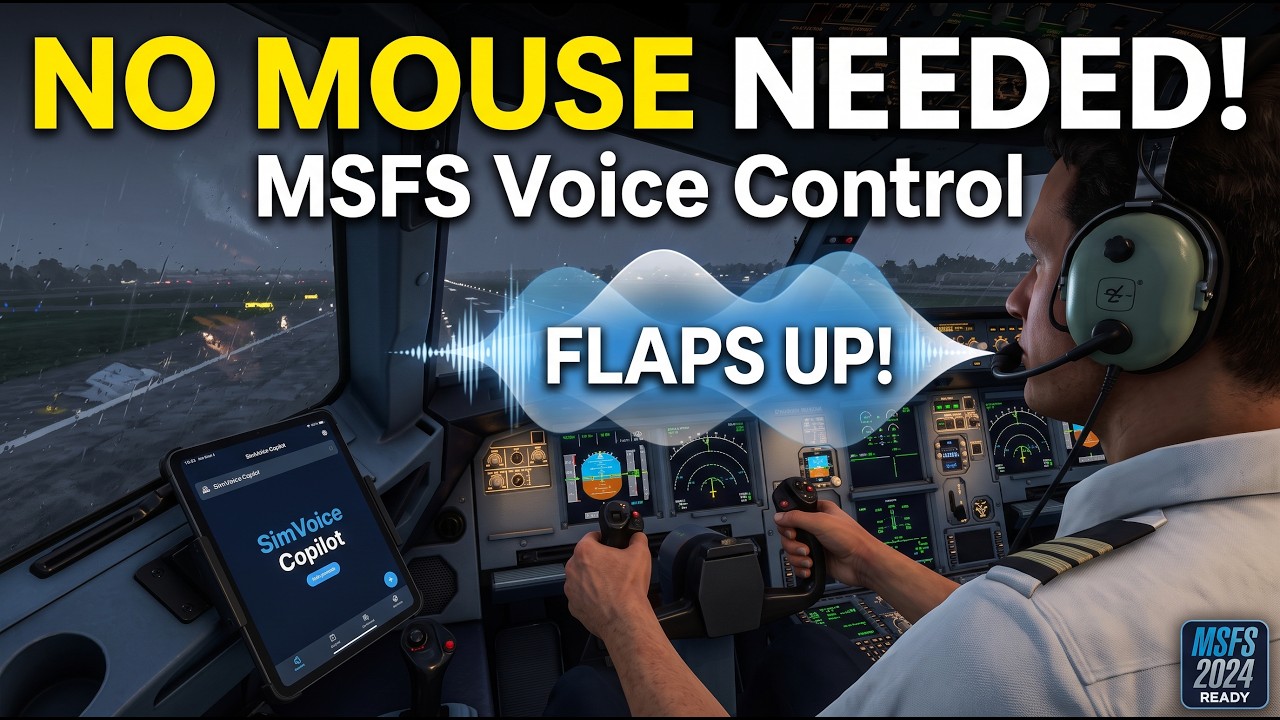
High in the flightsim sky demonstrates SimVoice Copilot in a complete hands-free MSFS workflow, using voice commands to control aircraft systems, autopilot functions, radios and checklists without reaching for the mouse or keyboard. The video also covers setup, the in-sim EFB and practical use in both VR and normal flight.
Use voice where it saves attention, keep precise controls when precision matters, and adapt the setup to each aircraft.
Trigger configured actions, read simulator data and use dynamic parameters such as frequencies, headings and altitudes.
Work through supported checklists with spoken responses, validation and automatic progression.
Open SimVoice Copilot inside MSFS to browse and select supported checklists, follow the active item and use manual Focus or Auto Focus without leaving the simulator.
When supported, automatically focus the relevant cockpit control so you can connect the spoken checklist item with the aircraft panel.
Connect to Microsoft Flight Simulator 2020 and 2024 using SimConnect, supported custom events, keyboard actions and aircraft-specific handling.
Premium turns natural-language intent into a reviewable deterministic action plan using real SimVoice/MSFS targets, spoken parameters, SimVar reads and numeric conditions.
Premium offers 13 Neural Voice options. Only fresh cloud generation uses generated-minute balance; local and server cache playback uses zero additional balance.
Export, share and import compatible profiles and configuration in .svcpack files, with a preview before changes are applied and protection for existing profiles.
Speak airport ICAOs, waypoints and radio navaids in Direct-To workflows supported on Garmin G1000 NXi and Working Title GNS 530.
Export the consolidated command inventory to Excel or CSV for documentation, review or sharing.
SimVoice Copilot supports aircraft-specific workflows instead of assuming every cockpit behaves the same way.
Switch command sets automatically or manually for different aircraft and stages of flight.
Create, test and maintain your own spoken phrases using the built-in command editor.
Ask for simulator values and hear the result without leaving your controls or VR view.
Connect spoken phrases to shortcuts supported by MSFS and compatible third-party tools.
Bind a keyboard, yoke, throttle, joystick or controller button to prevent accidental activation.
Choose the microphone and output device used by SimVoice, including dedicated VR audio hardware.
The SimVoice Copilot EFB keeps the active checklist workflow inside MSFS, so you can control the procedure without constantly switching back to the Windows companion app.
Browse supported checklist packages, select the checklist you need and keep the current item visible while you work through the procedure.
Use Focus on demand or enable Auto Focus so supported checklist items can guide you toward the relevant cockpit control.
Control checklist progression from the in-sim EFB while voice responses and supported cockpit integrations keep the workflow moving naturally.
Core voice-control workflows support Microsoft Flight Simulator 2020 and 2024. Aircraft-specific functions, native checklist synchronization and cockpit focus can vary by aircraft and avionics implementation.
Voice commands, profiles, SimConnect actions and compatible checklist workflows.
Voice commands plus the latest in-sim checklist and cockpit-assistance integrations where supported.
Push-to-Talk and selectable audio devices help keep voice control practical with yokes, HOTAS, controllers and VR headsets.
Install the certified Microsoft Store version and continue with Free. No trial and no payment card are required to start.
Use the included configuration, checklists and profiles or customize mappings for your aircraft.
Connect to MSFS, choose your listening mode and use voice where it reduces workload and cockpit hunting.
SimVoice Copilot is developed by the creator of SurClaro, the flight simulation community founded in 2000. That history continues today with tools focused on modern Microsoft Flight Simulator workflows.
SimVoice Copilot Free is permanent. Install it from Microsoft Store and upgrade only when Premium fits the way you fly.